User Manual
Hew 0.6.2 · Observe app 0.1.1
Hew Observe helps you find busy actors, inspect supervision and follow messages through a running Hew program. Start with the interface that fits your task.
| Interface | Best for | Start here |
|---|---|---|
| Desktop app | Seven inspection tabs, local recordings and offline replay | Getting started |
| iPad app | Touch inspection and keeping captures on the device | Using Observe on iPad |
| Terminal observer | Inspecting a local or remote program from a terminal | Terminal observer |
| Browser dashboard | A quick health check with no separate app | Browser dashboard |
This manual covers the Tauri app’s 0.1.1 controls and the terminal observer and browser dashboard in Hew 0.6.2. Some app controls arrived after the public Linux 0.1.0 preview. Check current downloads for the version and platforms available to install. The earlier Swift app is a parked implementation; use the Tauri app instructions here for current builds.
All three clients read the same program’s Observe v1 profiler. A profiler must be running for live inspection. A desktop/iPad .hewobs recording can be read after the program stops. The browser dashboard and terminal observer do not open these recordings.
Screenshots of the desktop and iPad layouts use sample data in the app’s browser frontend. Terminal screenshots come from hew observe --demo. The dashboard screenshot comes from a live program built with the released Hew 0.6.2 SDK.
For a complete example, connect to a program, inspect its actors, record an interesting interval, then reopen the recording after stopping the program.
Install Hew 0.6.2, then build a program and enable its profiler on loopback:
hew build my_program.hew -o my_program
HEW_OBSERVE=hot HEW_PPROF=127.0.0.1:6060 ./my_program
Keep that program running. HEW_OBSERVE=hot enables mailbox loss and gossip counters. Without it, some counters stay disabled; zero is not evidence that no loss occurred. The program still needs to do work to produce useful events.
Use a long-running program such as observe_showcase.hew from the matching source tag. Build it with hew build, as above. The showcase runs for about a minute; reconnect after restarting it for another session.
Loopback keeps the profiler on your machine. For another device, bind to a specific LAN address and connect to that address from a trusted network. Profiler endpoints expose runtime details without an authentication prompt; keep them off public networks and forward a local port over SSH when appropriate.
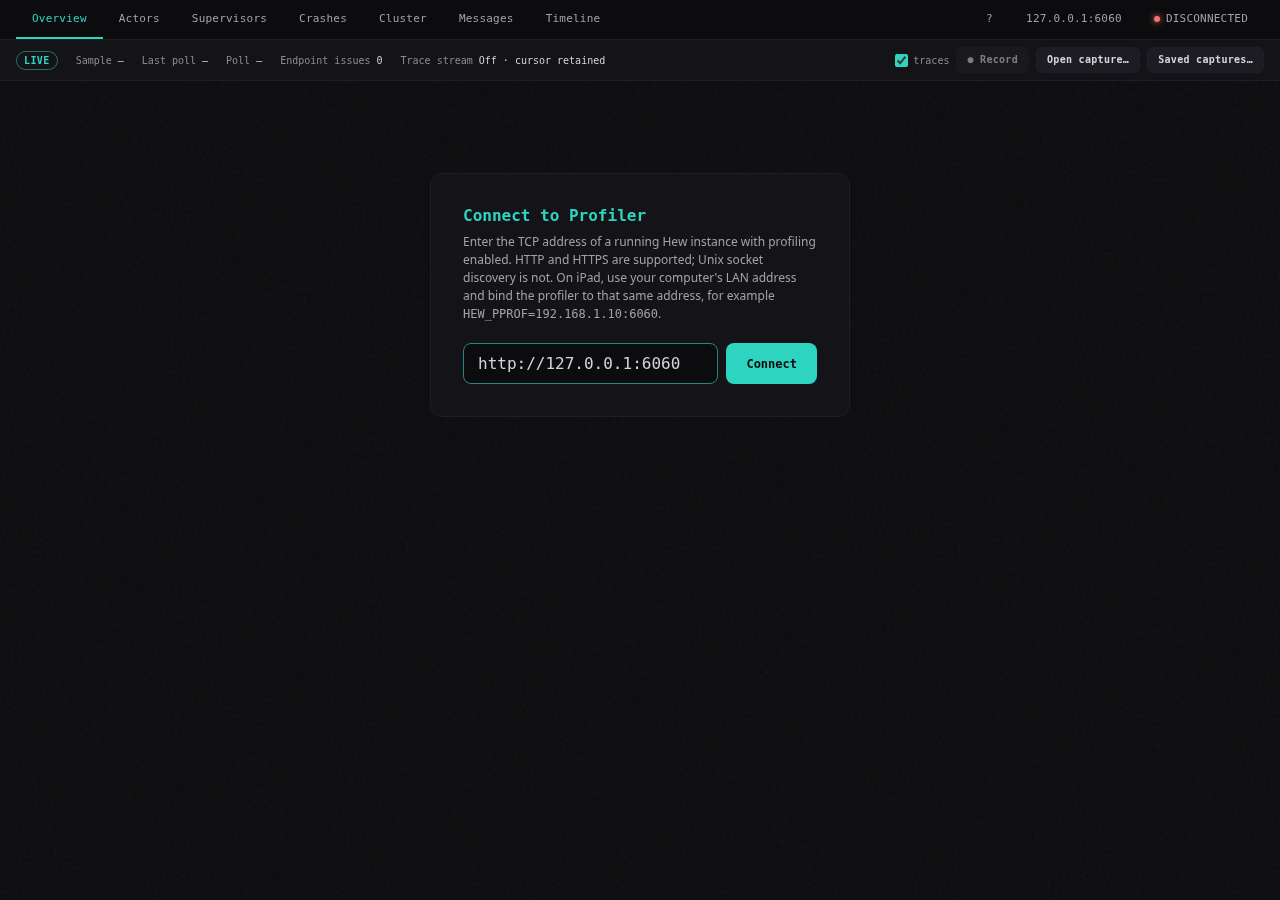
Open Hew Observe. Select the target address in the top bar to show Connect to Profiler, or use the connection panel shown at startup. Enter http://127.0.0.1:6060 and choose Connect. HTTP and HTTPS addresses are accepted; the app does not use terminal Unix-socket discovery.
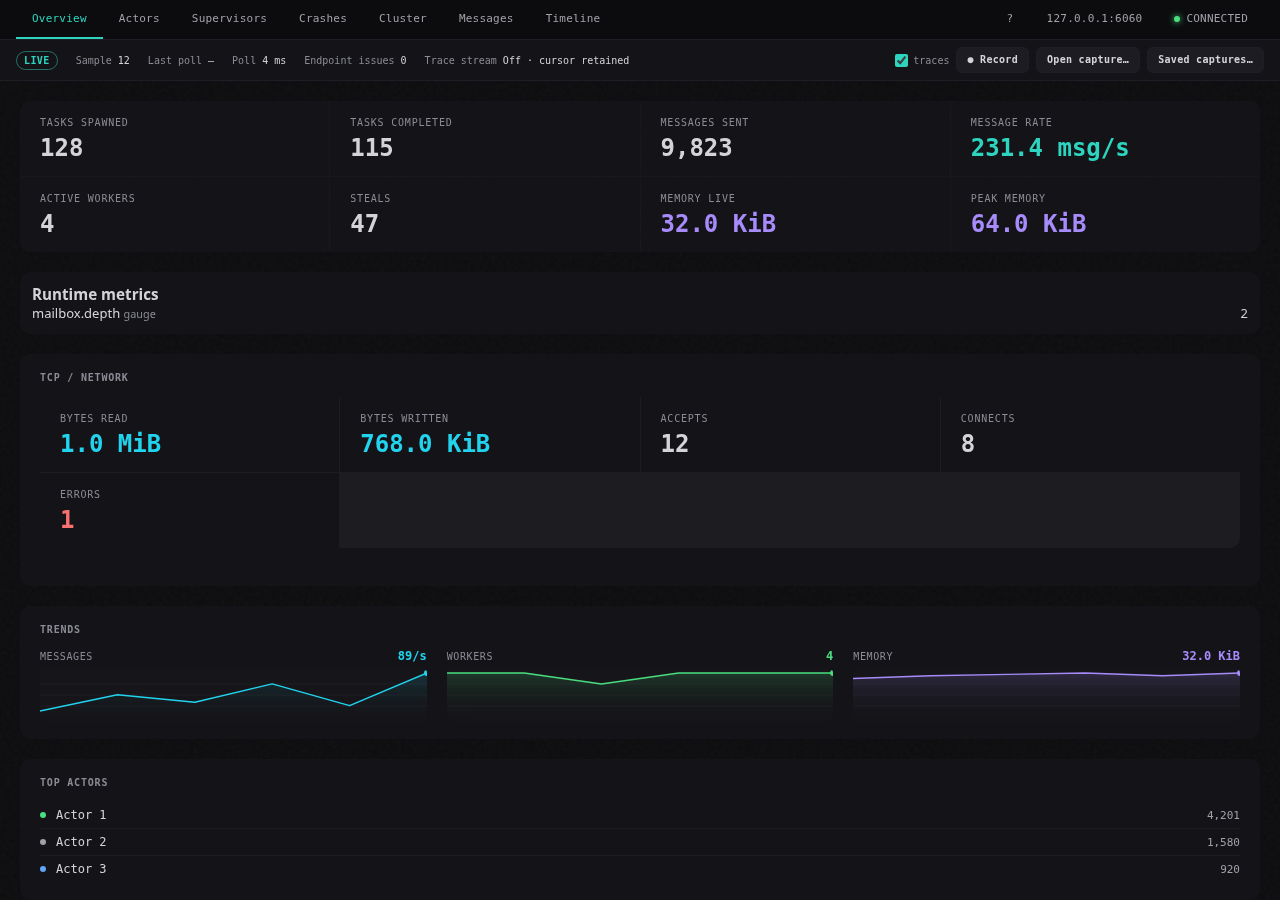
When Connected appears, open Overview. The session bar shows the sample number, age of the last poll, polling duration and endpoint issue count. A connected server can still have individual endpoint failures; inspect the visible issues if a tab stops updating.
Choose the target address again to switch programs. An accepted target change clears the previous program’s display and exact actor filter. If the new target is rejected, the connection panel explains the error.
The terminal offers hew observe --demo. Developers with the app source can run cd desktop && npm ci && npm run dev to explore the browser frontend with sample data. That frontend demo does not connect to a real profiler or save native recordings. For the live browser dashboard, open the profiler’s own URL.
The desktop and iPad app share seven tabs and a session bar. Click or tap a tab to change views. On narrow screens, scroll the tab row horizontally.
| Tab | Use it to answer |
|---|---|
| Overview | Is the program making progress? How busy are the scheduler and memory allocator? |
| Actors | Which actor has mailbox pressure or high processing time? |
| Supervisors | Which stable role is restarting, and what is its current worker incarnation? |
| Crashes | Which actor failed, with what reason? |
| Cluster | Which peers and routes does this node report? |
| Messages | Which actionable events involve this actor? |
| Timeline | In what order did events occur on each route-slot lane? |
Use ? for keyboard help. Tab moves focus through controls; when a tab has focus, Left/Right changes the tab. Bare 1–7 also selects tabs when you are not typing. This applies on macOS too; Command-number shortcuts belong to the earlier Swift app.
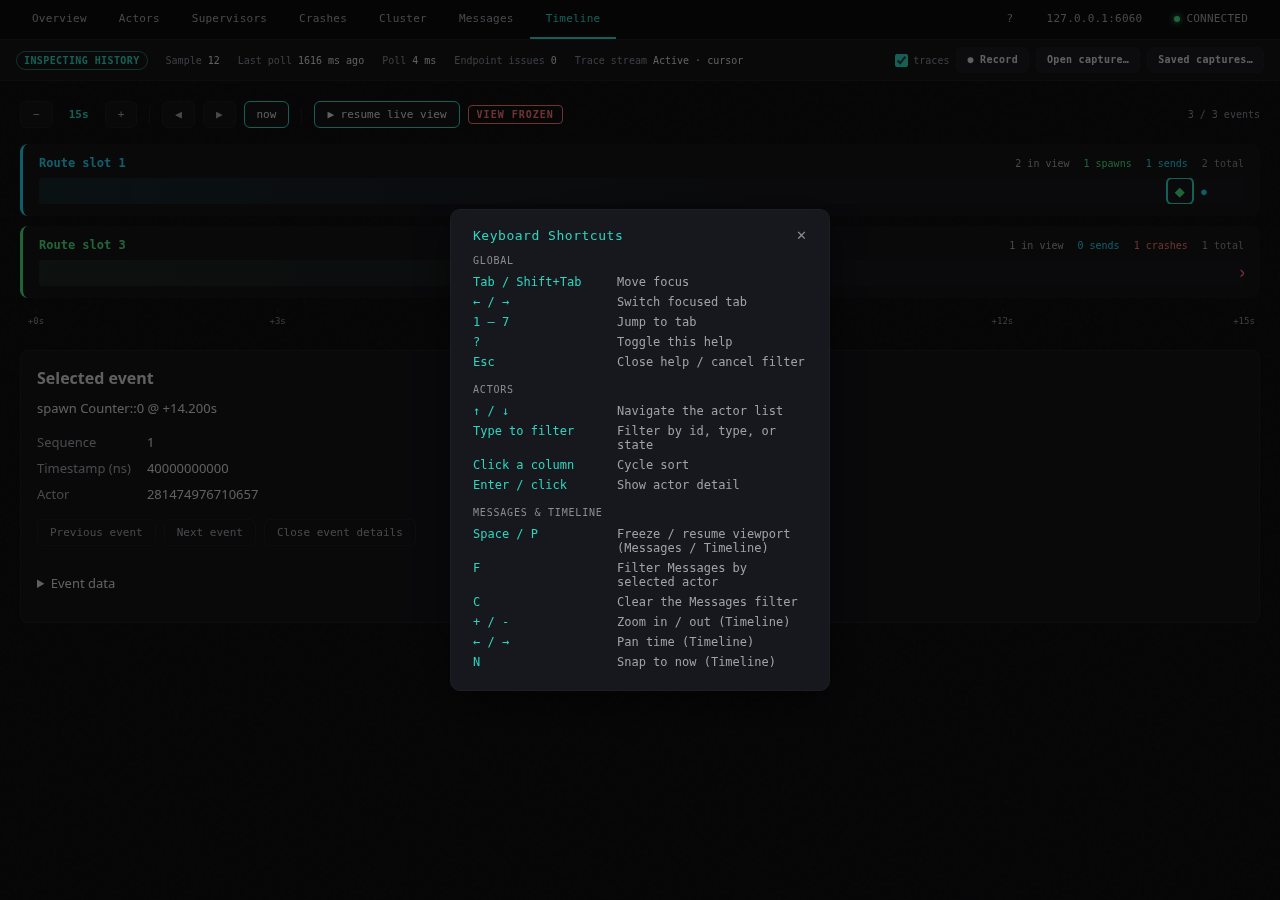
On Messages and Timeline, Freeze View holds the visible events for inspection. Collection continues. Resume View returns to live data. The session badge distinguishes Live, Inspecting history and Open capture. A frozen viewport is not a saved recording.
Start here to confirm that samples are arriving. Message rates show activity; active workers show scheduler use. Memory cards distinguish live bytes from peak bytes and allocation counts. The busiest-actor list helps you choose where to investigate next.
A cumulative message count can stay high after activity stops. Use rates and the last-poll age together to distinguish a quiet program from stale data.
When the producer supplies Rc telemetry, Live Rc allocations lists live allocations by type. Rc sweep events describe reclaimed allocations. These counts are separate from the ordinary allocator byte totals.
Granular runtime metrics appear when supplied by the producer. If Hot counters are disabled appears, restart the program with HEW_OBSERVE=hot before using mailbox-loss or gossip counts to judge behavior.
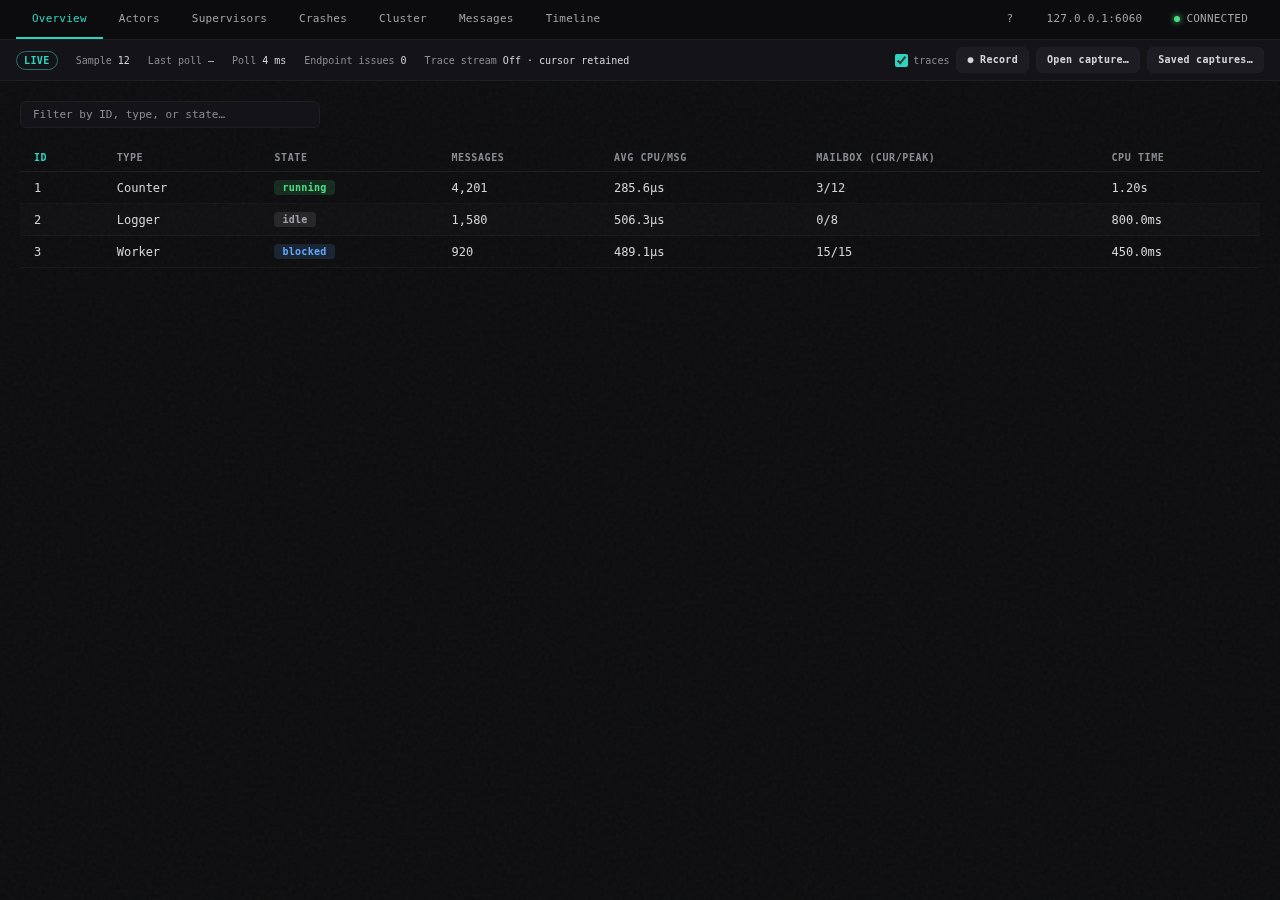
Type an ID, actor type or state in Filter actors. Click a column heading to sort; click it again to reverse the order. Select a row, or focus it and press Enter, to open its details. Up/Down moves through the filtered list; Escape closes the detail panel.
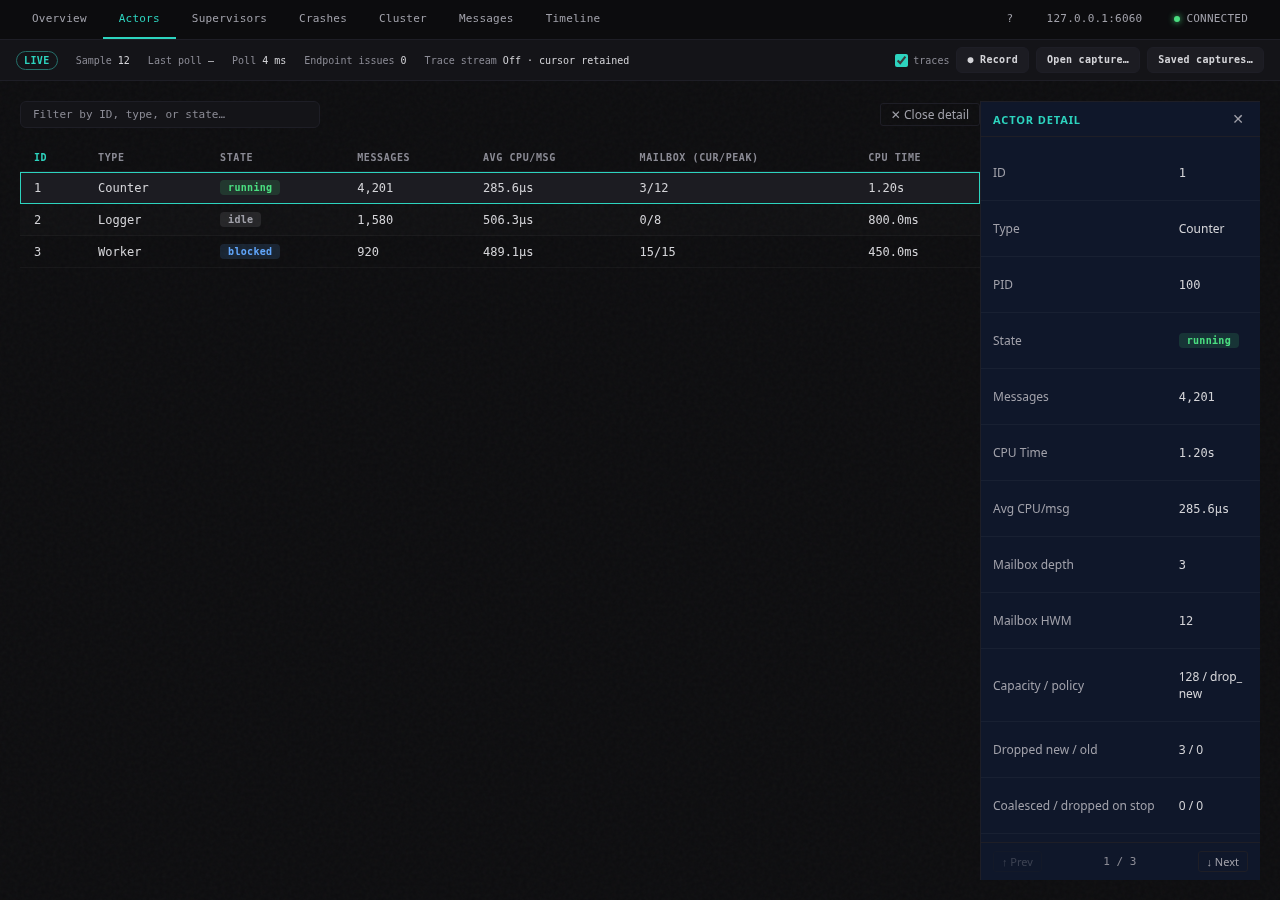
Compare message counts, total CPU time and average time per message. Mailbox depth is the queued count at the sample; high-water mark is the largest depth reported. A high-water mark alone does not show how long an actor waited.
With a recent producer, details include mailbox capacity, overflow policy, dropped-new/old, coalesced and dropped-on-stop counts. Read these alongside the hot-counter status. Producer origin and spawn serial distinguish actor incarnations when supervision replaces a worker.
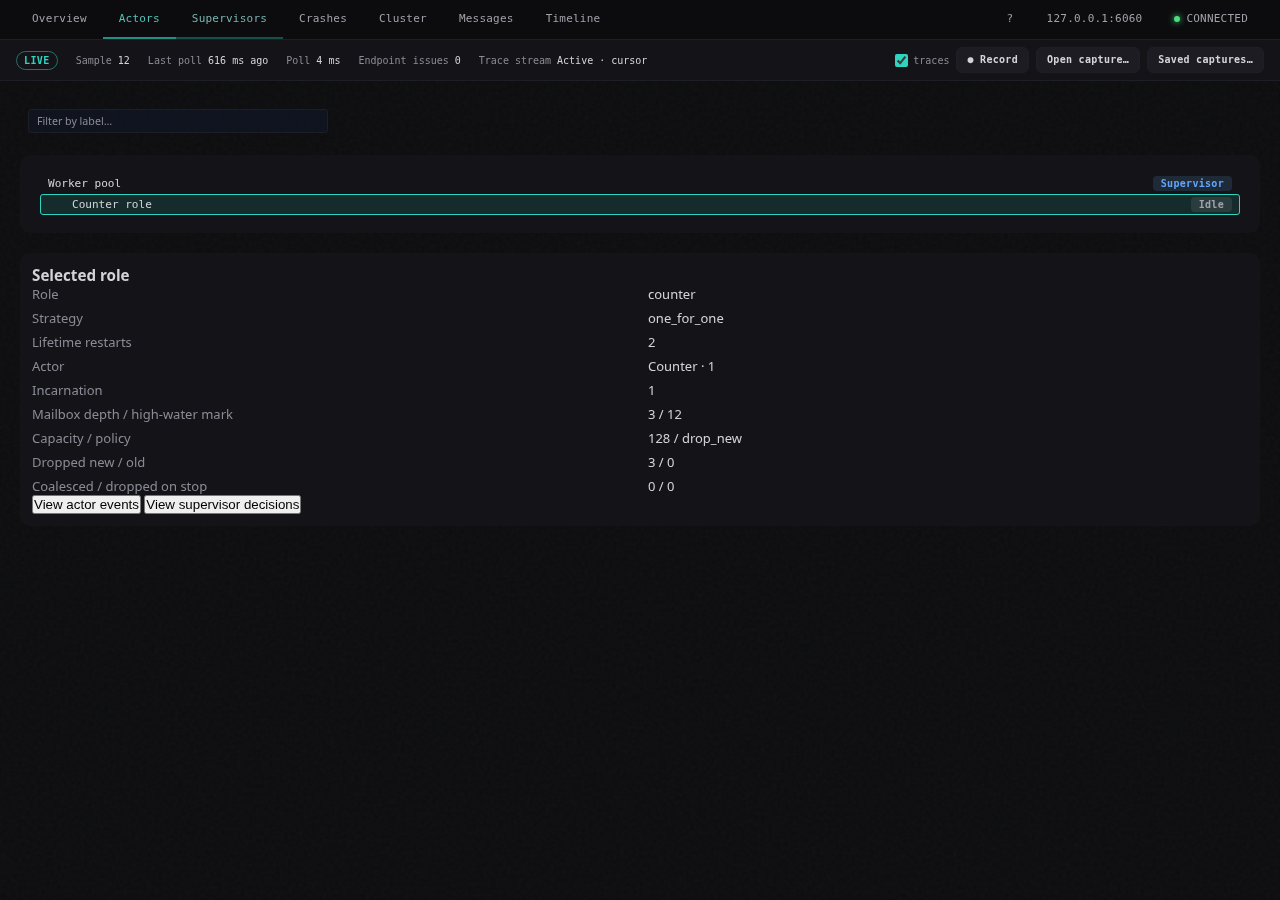
Select a role to inspect its strategy, lifetime restarts, current actor incarnation and mailbox information. A role can stay the same while the worker’s spawn serial changes after a restart. A role with no live worker can still appear in the tree.
Filter by label to narrow a large tree; ancestor rows remain visible for context. View actor events opens Messages focused on the exact producer and incarnation. For a child role, View supervisor decisions follows its owner’s events. Events from another process or an earlier incarnation are excluded.
Under one_for_one, a failure restarts the affected child; one_for_all can restart its siblings too. Read the strategy and crash/decision events together instead of inferring the policy from a single snapshot.
To watch a deliberate worker crash and restart, build observe_supervisor_showcase.hew and run it with HEW_OBSERVE=hot HEW_PPROF=127.0.0.1:6060. Older producers may provide only tree labels, depth and state; unavailable structured fields are identified in the detail panel.
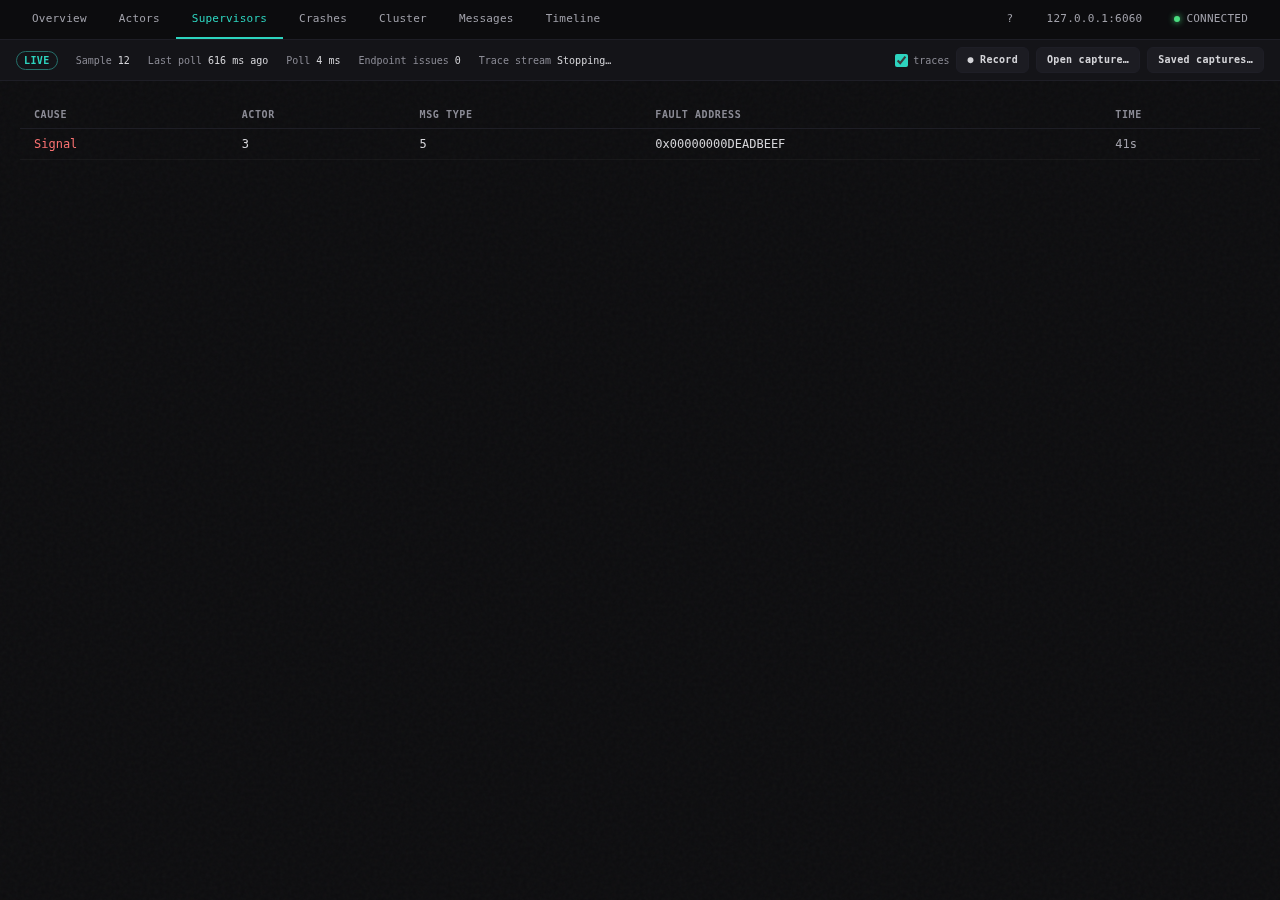
Select a crash to inspect the reported reason and actor information. Use Up/Down to move between failures and Escape to close the details. A crash entry records the producer’s report; the actor may already have been replaced by a supervisor when you inspect it.
An empty list is normal when the producer has reported no crashes. If you expected a failure, check the last-poll age and endpoint issues before assuming that absence proves the program stayed healthy.
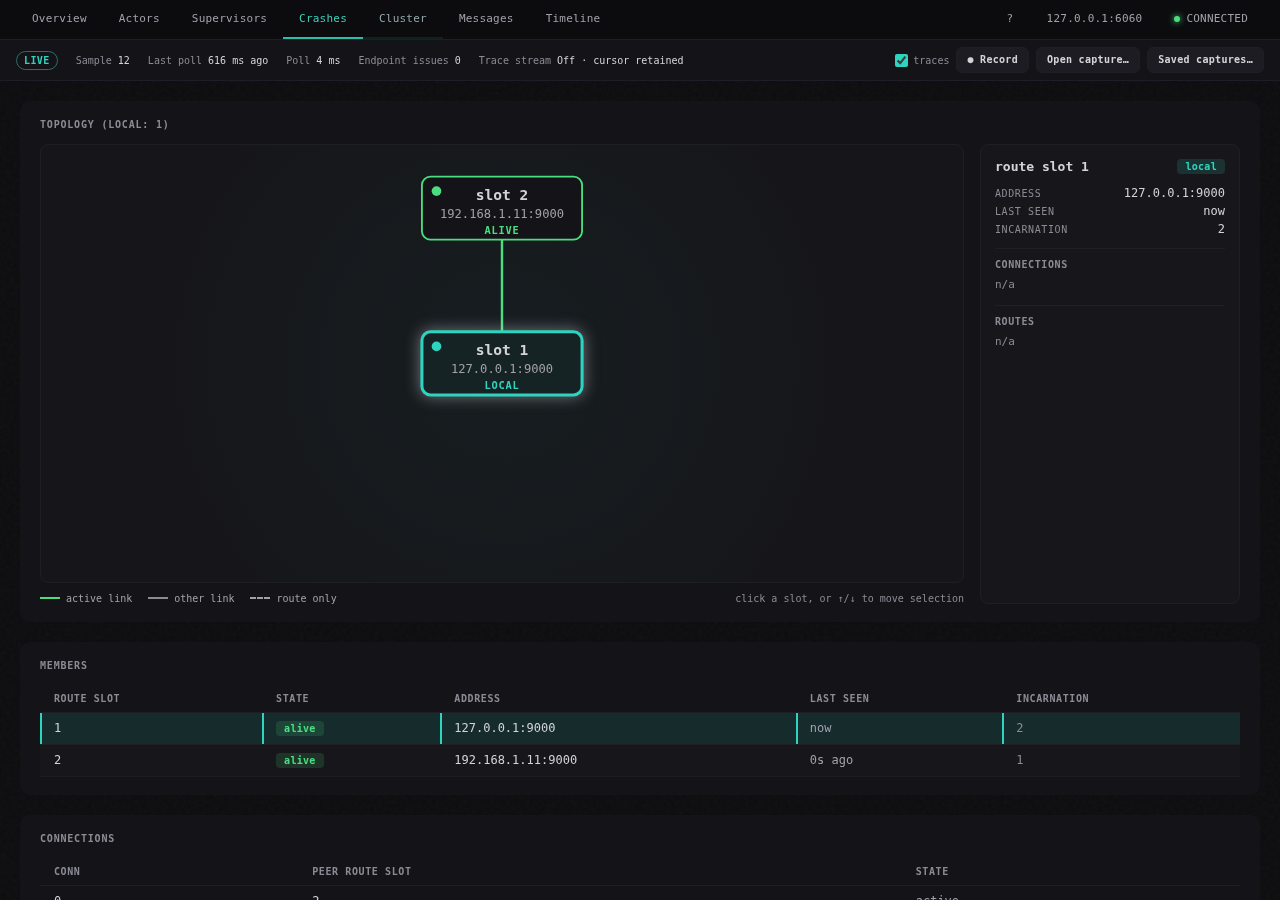
The topology and tables show this producer’s view of its peers, connections, routing and registered names. Select a node for its details. A standalone program shows only its local node.
Route slots label local routing positions. They are not stable machine or process identities. Compare membership state with connection state and message activity; a peer can be known to membership while its connection is unavailable.
Recent producers also report granular node.*, swim.* and registry.* metrics. Missing metrics mean unavailable telemetry, rather than zero activity. For a wider view of a running cluster, the terminal observer can poll additional node endpoints with repeatable --node arguments.
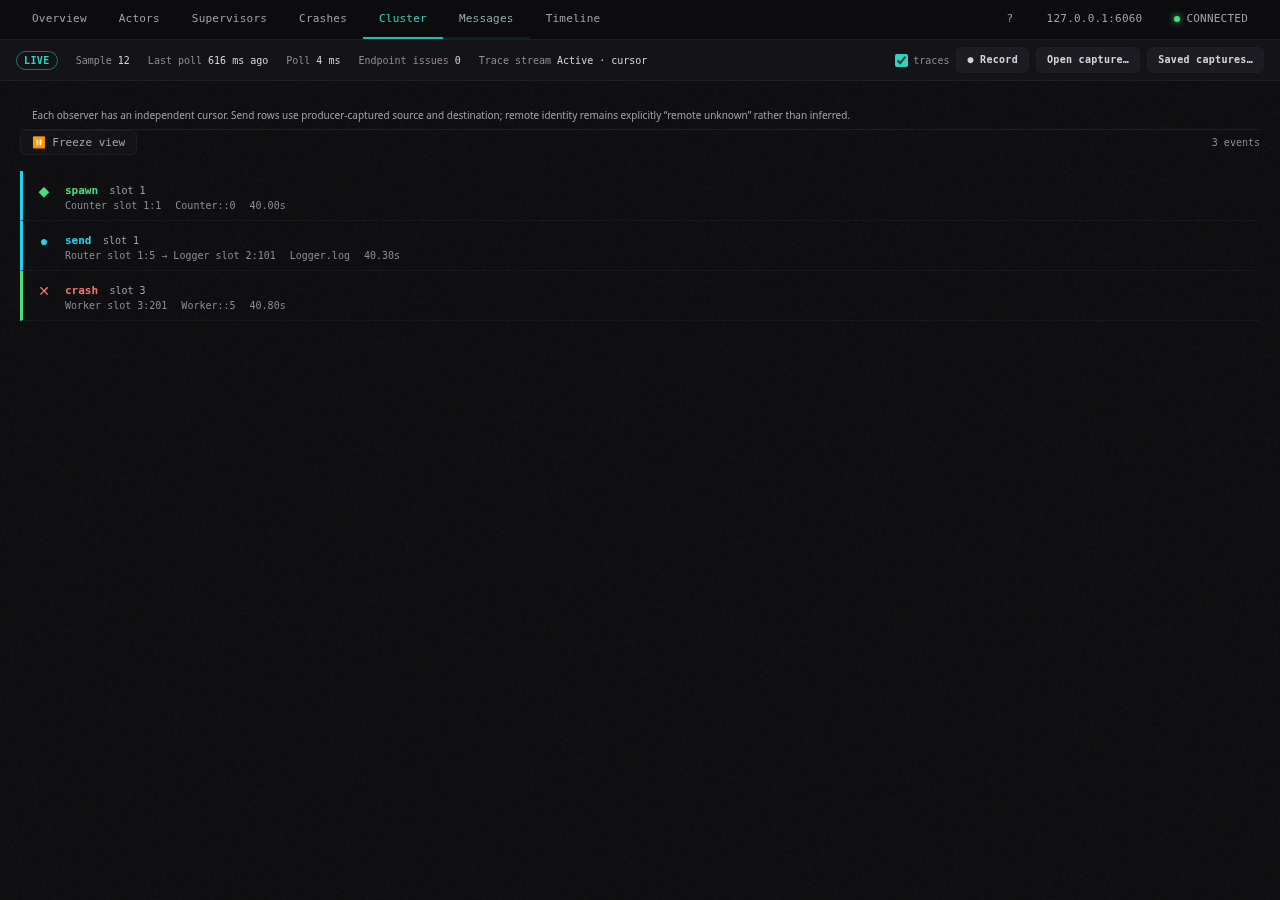
Messages lists actionable trace events such as spawn, send, crash, stop, supervisor decisions and channel/lambda lifecycle changes. Internal begin/end span records are omitted from this view. Handler names are shown when supplied; otherwise labels use the actor type or numeric message type.
Click an event with a known local actor to filter to that actor. F filters by the hovered actor; C or the filter’s clear control removes the filter. Supervisor drill-down uses an exact producer and spawn-serial filter, so events from a previous worker incarnation do not get mixed in.
Choose Freeze View, or press Space/P, to hold a moment while you inspect it. New events continue arriving in the background. Choose Resume View to return to the latest events. To preserve an interval, use Record a session.
If no events appear, open Messages or Timeline to collect live events, wait for program activity and clear any actor filter. The session’s traces checkbox controls whether recordings include events; it does not enable or disable the live view. A producer has bounded event retention; a retention overrun is reported as a gap, not reconstructed into missing events.
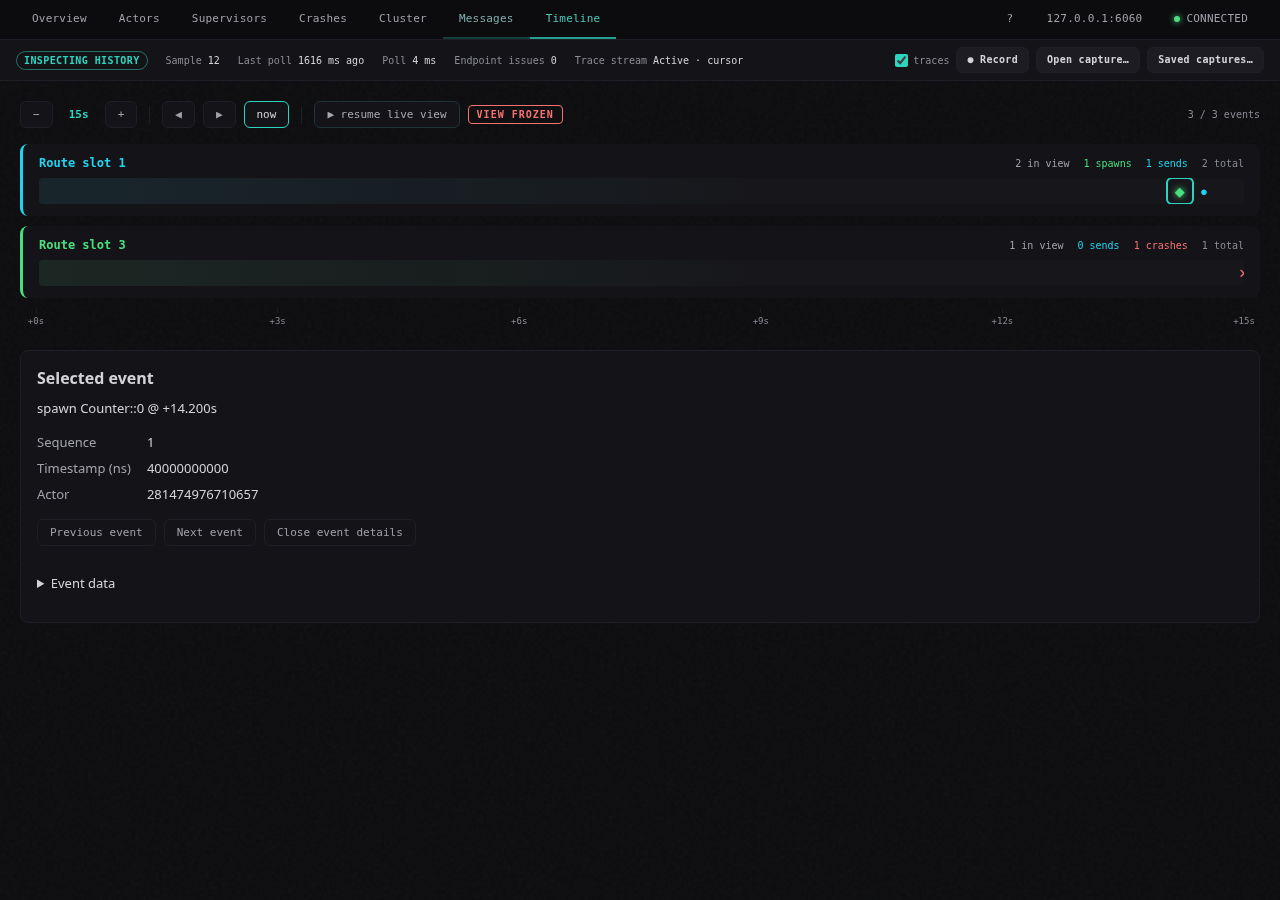
Timeline places the same actionable events on a time axis, with a lane for each observed route slot. Select an event marker to read its actor, handler and lifecycle details in Selected timeline event. Selection freezes the viewport so the marker stays available to inspect.
Use +/- to zoom, Left/Right to pan, now (or N) to return to the latest events, and Freeze View / Resume View to control the viewport. Touch users can use the visible toolbar buttons and tap an event marker.
Producer timestamps use the producer’s monotonic clock. Compare ordering within its stream; unrelated producers’ clock values are not interchangeable wall-clock times. A route-slot lane is not a persistent node identity.
The desktop and iPad app keep captures in app-owned storage. Leave traces checked to include events, then choose Record while connected. Metrics continue to be recorded while you switch tabs or freeze a view.
Choose Stop recording to finalize the capture. Use Export last… to save a .hewobs copy; Export copy… also makes a backup during a recording. Choose the connection status to disconnect. If finalization fails, the app shows an error so you can retry or export the recoverable capture.
Captures can contain endpoint addresses, actor/handler names, crash messages and raw profiler responses. Inspect them for sensitive application data before sharing them. An exported file is a snapshot of the capture at export time.
Choose Saved captures… for app-owned recordings, including after relaunch, or Open capture… for an exported file. Opening is read-only and needs no running profiler.
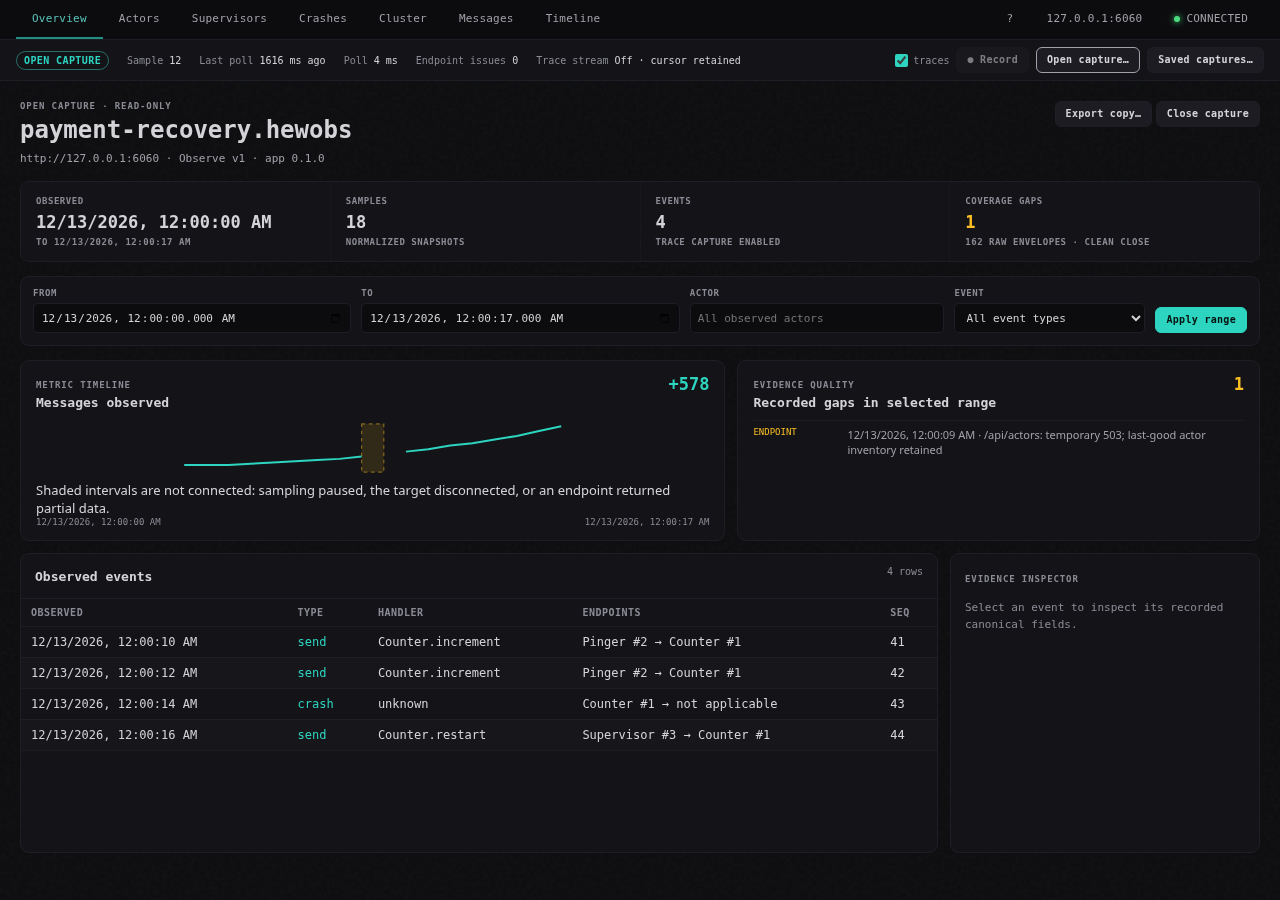
Review sample/event counts, clean-close status and gaps. Set From/To, an actor ID or event type, then choose Apply range. Select an event for details; use Next event page and Next gap page for additional results. Export copy… saves a copy. Close capture returns to the live workspace.
If opening fails, read the alert and choose Choose another…. A .hewobs filename alone does not make a valid recording; do not rename unrelated files. Keep the original when recovering an interrupted capture.
Use the same app tabs and recording workflow with touch controls. Check current downloads for iPad availability; these instructions also cover supplied iOS test builds.
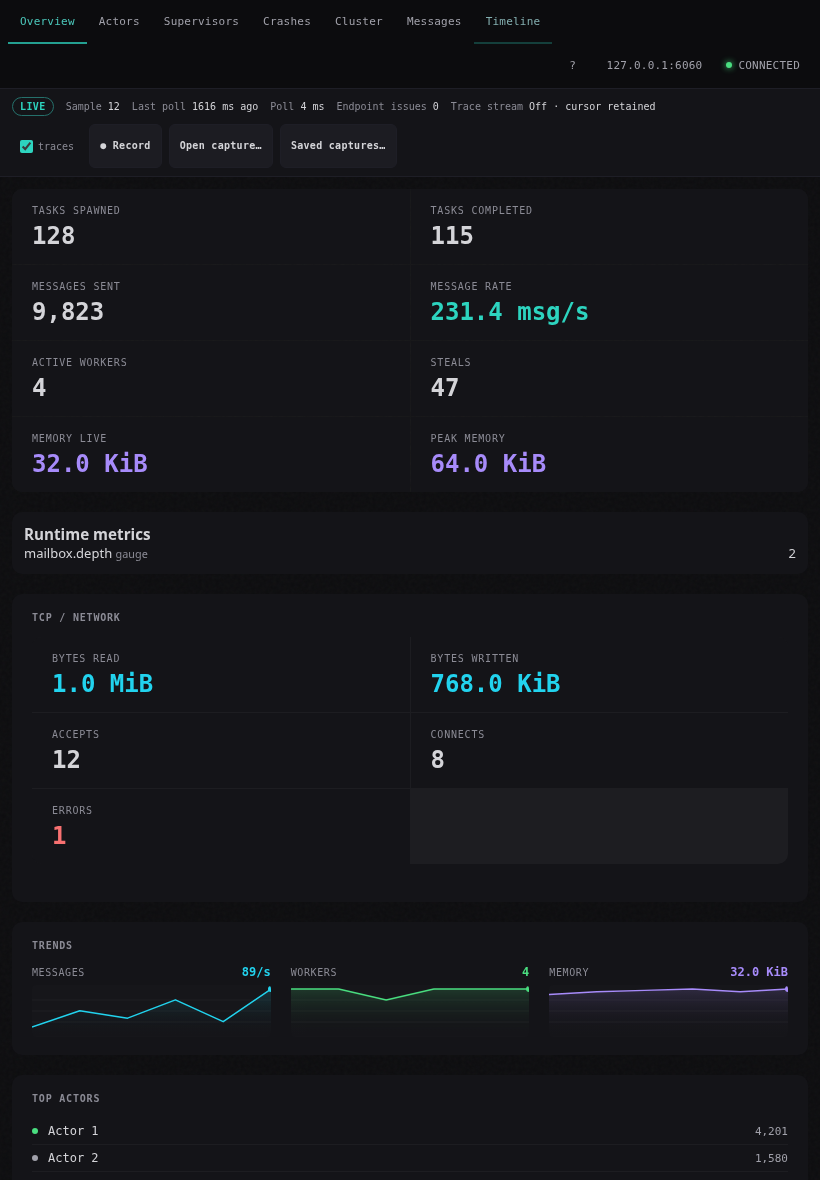
The iPad’s localhost address refers to the iPad. On your computer, bind the profiler to that computer’s LAN address, for example:
HEW_OBSERVE=hot HEW_PPROF=192.168.1.10:6060 ./my_programConnect the iPad to the same trusted network. Allow local-network access when iPadOS asks, enter http://192.168.1.10:6060 in the app, and tap Connect. Use your computer’s actual address; check its firewall if the connection fails. If access was denied, review the app’s Local Network permission in Settings.
Tap Record, then Stop recording. Saved captures… keeps the recording available after reopening the app. To put a copy in Files, use Export last… and choose a destination in the native picker. Cancelling the picker keeps the saved capture available; retry export if a Files provider reports an error.
Scroll the tab row in Split View. Tap timeline markers to open their details, and use the on-screen zoom, pan and freeze controls. Do not depend on continuous live polling while the app is backgrounded or the device is locked; check for coverage gaps after returning. Stop/finalize before leaving when the interval must be retained.
The Hew 0.6.2 SDK includes the terminal interface as hew observe. Use the observer from the same SDK release as the program’s compiler.
# Inspect the TCP profiler started earlier:
hew observe --addr 127.0.0.1:6060
# Explore sample data without a program:
hew observe --demo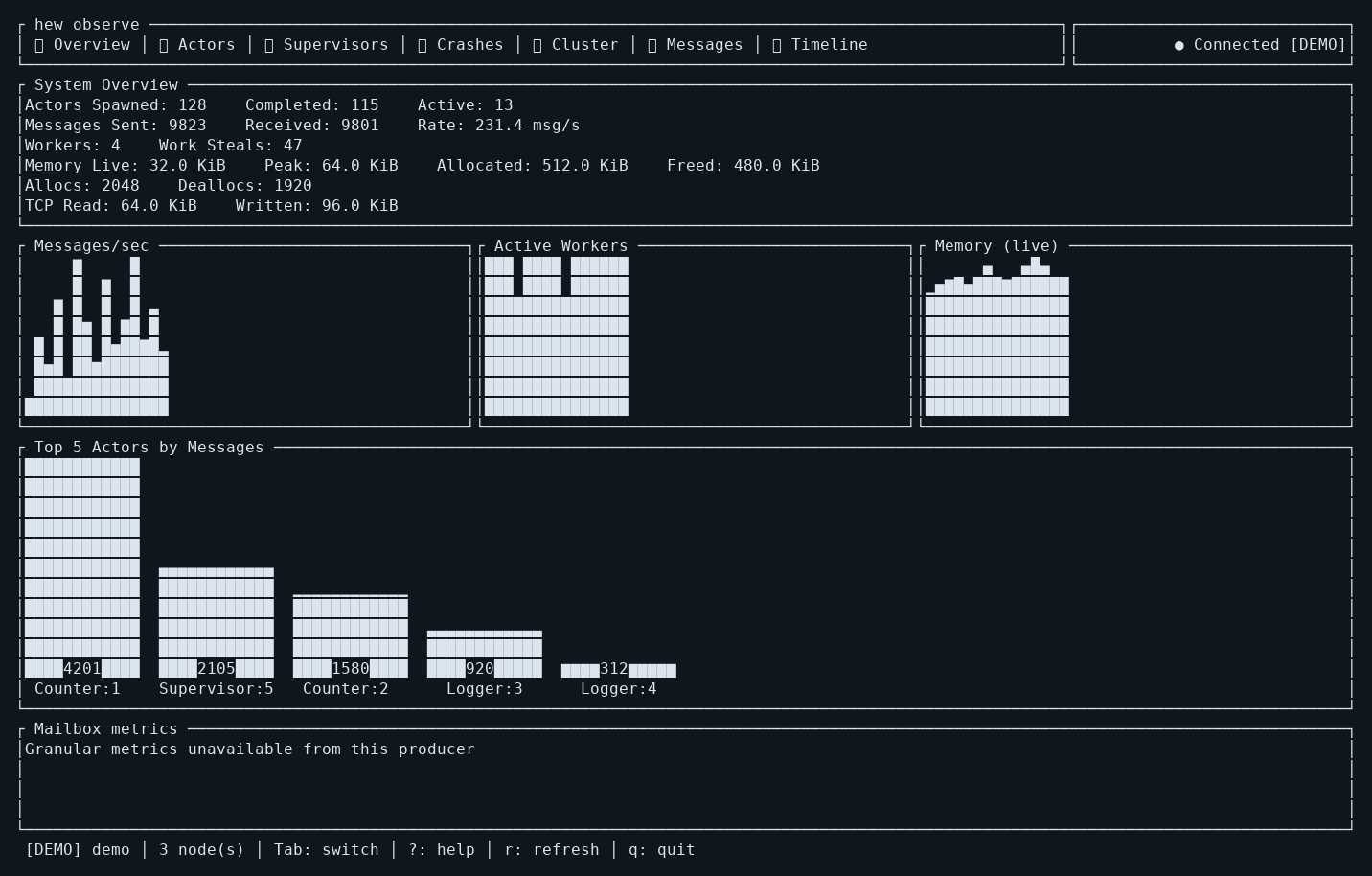
On Unix, hew run my_program.hew --profile creates a discoverable per-user socket. In a second terminal, run hew observe. If more than one profiler is running, use hew observe --list, then hew observe --pid 12345 with the reported PID. With no profiler available, the terminal waits and scans again. TCP --addr also works where Unix discovery is unavailable.
Tab / Shift+Tab moves between the seven views. ? opens help, r refreshes, and q or Ctrl+C exits. In Actors, Up/Down selects, s changes sorting and / starts a text filter. Enter accepts a filter; Escape clears it. In Supervisors, Enter focuses the selected role’s events in Messages.
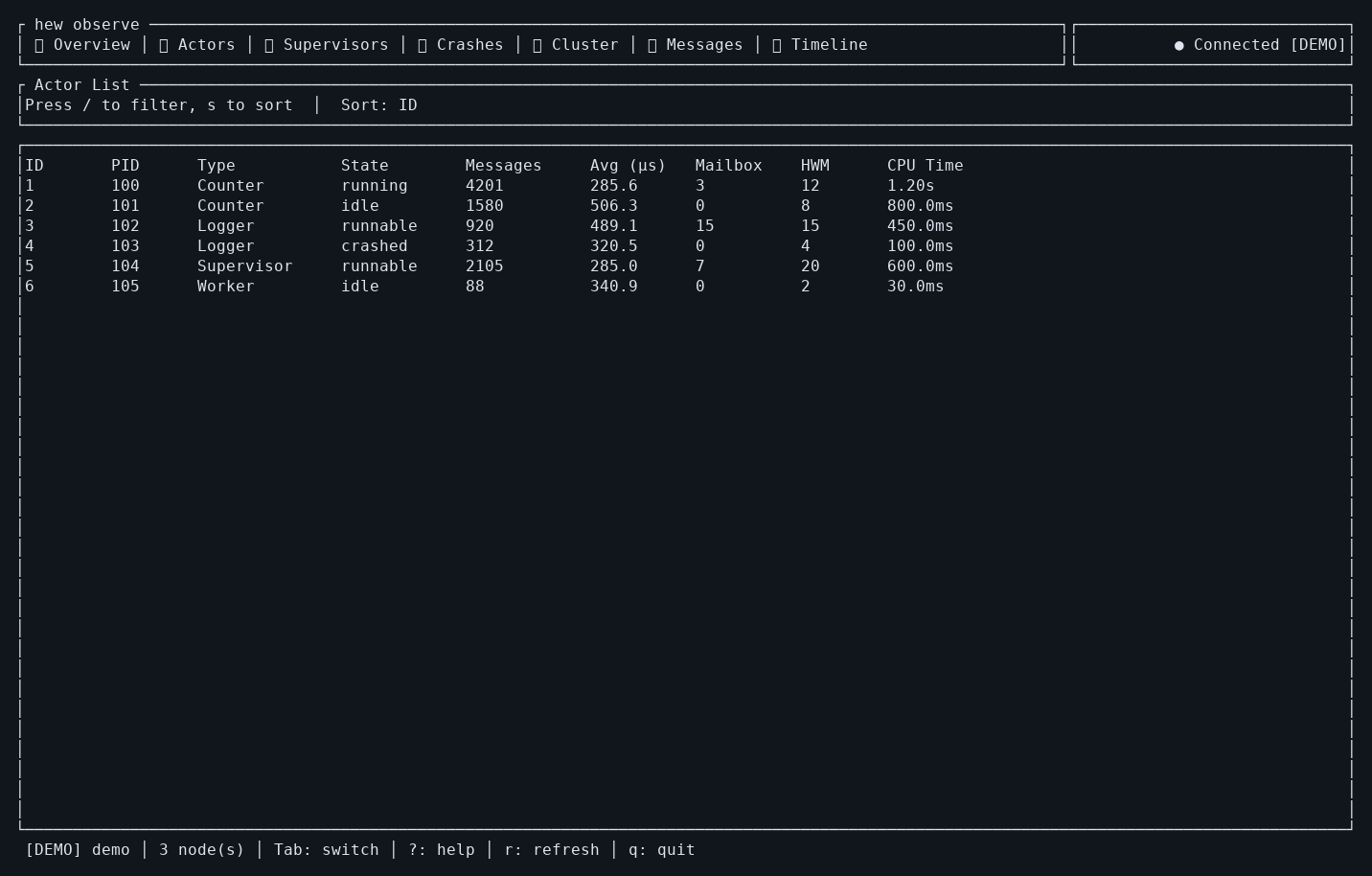
Messages uses p/Space to pause, f to filter the selected actor and c to clear the filter. Timeline uses Left/Right to pan, +/- to zoom, n to follow the latest events and p/Space to pause.
For multiple TCP producers, add endpoints:
hew observe --addr 127.0.0.1:6060 --node 127.0.0.1:6061[ / ] changes the active node. --refresh-ms 2000 changes the polling interval; hew observe --help lists options. The terminal requires an interactive TTY. Use the profiler API for scripts. To record and replay .hewobs files, use the app.
Open http://127.0.0.1:6060/ while the TCP-profiled program is running. The runtime serves this dashboard itself; no separate Observe installation is needed. A Unix-socket-only profile cannot be opened by a normal browser; start the program with a TCP HEW_PPROF address for this view.
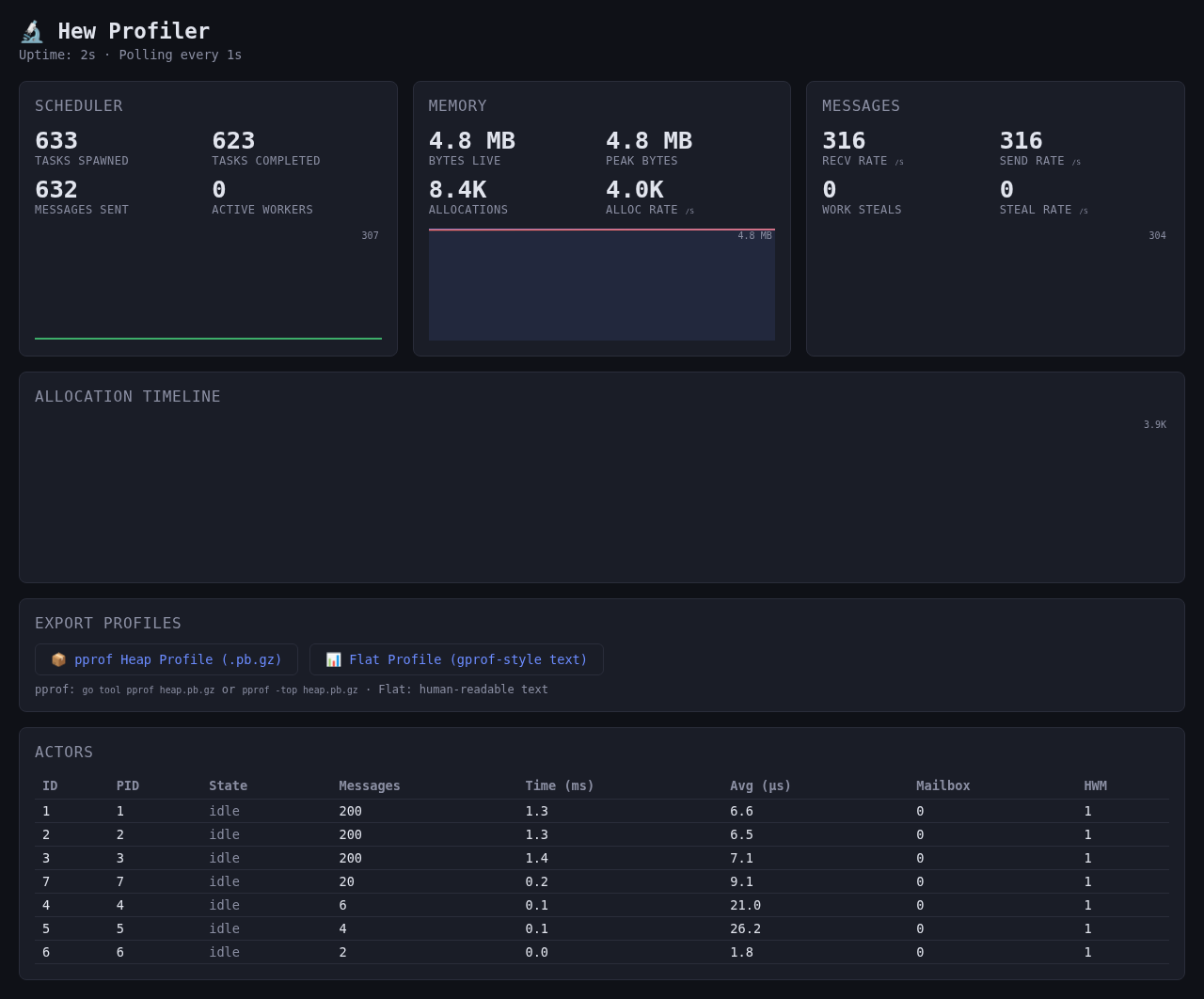
The dashboard refreshes about once a second. Scheduler shows spawned and completed tasks, sent messages and active workers. Memory shows current and peak bytes, allocations and allocation rate. Messages shows send/receive rates and work-steal counts. Allocation Timeline plots allocation activity. Actors compares message counts, processing time and mailbox depth/high-water marks. Let the program run long enough to populate history charts.
pprof Heap Profile downloads heap.pb.gz; Flat Profile opens a text profile. Save or view them while the program is still running. A heap profile can be inspected with compatible pprof tooling:
curl --fail http://127.0.0.1:6060/debug/pprof/heap -o heap.pb.gz
go tool pprof -http=127.0.0.1:8080 heap.pb.gz
go tool pprof is optional and needs Go installed. A heap profile describes memory allocations. Its runtime totals use allocator counters; per-actor rows are estimates derived from processed messages and mailbox high-water marks, not measured allocation stacks. It is not a .hewobs session or a CPU-sampling recording. Use the app for supervision drill-down, event timelines and offline sessions, or the terminal observer for the seven-tab terminal view.
If Connecting… persists or values stop changing, confirm the process is still alive and request /api/metrics at the same address. A quiet program can have flat charts. Keep the profiler on loopback or a trusted network; the dashboard exposes runtime details without login.
A sample is an observation, not a continuous history of everything between polls. Rates are derived from counters over time. Check sample age and gaps before comparing intervals or treating an absent event as proof it never occurred. A frozen view holds the viewport; a saved recording retains data.
Actor IDs are process-local. Route slots describe routing, and a spawn serial distinguishes a worker incarnation. For supervision event drill-down, the app also matches the producer instance. A restarted worker can occupy a familiar role without being the same actor instance.
Current clients use Observe v1. Hew release numbers, app versions and the wire schema are separate versions. New optional telemetry can be absent on older v1 producers; a wrong schema or malformed required field produces a visible error. See the profiler reference for API details.
Monotonic trace timestamps are for ordering within a producer stream. Capture observation times and producer event times represent different clocks.
| Key | Action |
|---|---|
| Tab / Shift+Tab | Move keyboard focus |
| Left / Right on the tab row | Switch focused tab |
| 1–7 | Jump to an app tab when not typing |
| ? / Escape | Open keyboard help / close it |
| Up / Down | Move through actor, crash or supervisor rows |
| Space / P | Freeze/resume Messages or Timeline |
| F / C in Messages | Filter the hovered actor / clear filter |
| + / - in Timeline | Zoom |
| Left / Right in Timeline | Pan |
| N in Timeline | Follow latest events |
Use on-screen controls for touch. Shortcuts are suppressed while typing and when modal dialogs own the keyboard. Sort Actors by clicking column headings.
| Key | Action |
|---|---|
| Tab / Shift+Tab | Next/previous view |
| ? / r / q | Toggle help / refresh / quit |
| Ctrl+C | Quit |
| [ / ] | Previous/next active producer |
| Up / Down | Select or scroll in lists |
| s / / in Actors | Cycle sort / type filter |
| Enter / Escape while filtering | Accept / clear filter |
| Enter in Supervisors | Focus the current role’s events |
| p or Space in Messages/Timeline | Pause/resume |
| f / c in Messages | Filter selected actor / clear filter |
| + / - / Left / Right / n in Timeline | Zoom / pan / follow latest |
Confirm the program is still running with HEW_PPROF set, and use the same address and port in the client. For the app or browser, use a TCP address rather than the Unix socket created by --profile. Check the endpoint directly:
curl --fail http://127.0.0.1:6060/api/metricsFor iPad, use the computer’s LAN address, check Local Network permission, and check that the firewall permits the connection on your trusted network. For a terminal discovery problem, run hew observe --list and use --pid or an explicit --addr. A process that already exited cannot supply new data.
Read the visible issue message. Confirm you reached a Hew Observe v1 endpoint, use the terminal bundled with your compiler’s SDK, and use a compatible app. A connected badge does not guarantee every endpoint returned valid data.
Open Messages or Timeline, clear filters and resume the viewport. Wait for the program to produce activity. For a recording with events, leave traces checked before starting the capture. Supervisors appears only when the program starts a supervision tree; use the supervision showcase to see a deliberate restart. Missing structured details on an older producer are not zero-valued counters. Restart with HEW_OBSERVE=hot when mailbox-loss counters are disabled.
Keep the saved original. Read the alert; retry export to a writable destination or choose another capture. On iPad, retry after the Files provider is available. If disconnect reports a finalization error, use the recoverable capture/export action before quitting. Review clean-close status and recorded gaps on reopen.
Use a package qualified for your distribution and architecture. Current 0.1.1 candidates require the distribution’s Bubblewrap, D-Bus proxy and compatible WebKit process layout, plus a host policy that permits sandbox construction. Read the startup error and ask the administrator to assess the host requirements. Keep the renderer sandbox enabled.
cd desktop
npm ci
npm run dev
Opening that development frontend in an ordinary browser supplies sample data. It is different from the live dashboard served by your program. Native app builds and release qualification are covered by the repository’s maintainer runbooks.
From the application repository, run make manual. The existing Pandoc and WeasyPrint build creates HTML, PDF and ePub under docs/manual/dist/ from these Markdown sections and screenshots. The published manual uses these same outputs.