Hew Playground on iPhone and iPad
Start with an example, change the code and keep the result on your iPhone or iPad.
Get Hew Playground from the App Store on your iPhone or iPad. You can start with a bundled example; no desktop compiler or account is needed for the editor.
The public App Store release is currently 0.5.0. In that release, Run uses the online service and requires internet. This guide covers its example, editor and file workflows and labels the execution controls found in newer source builds, which now bundle Hew 0.9.2. The real screenshots show a 0.6.1 build, including its On device/Remote chooser; those controls may be absent from your store version. Use the bundled examples for the app you have installed.
Open and run your first example
- Open the Library menu, shown as a stack of books in the toolbar.
- Choose Examples, then Hello World. On an older toolbar, tap Examples directly.
- Tap the green Run button.
- Read the Output panel below the editor. On iPad, the panels can sit side by side.
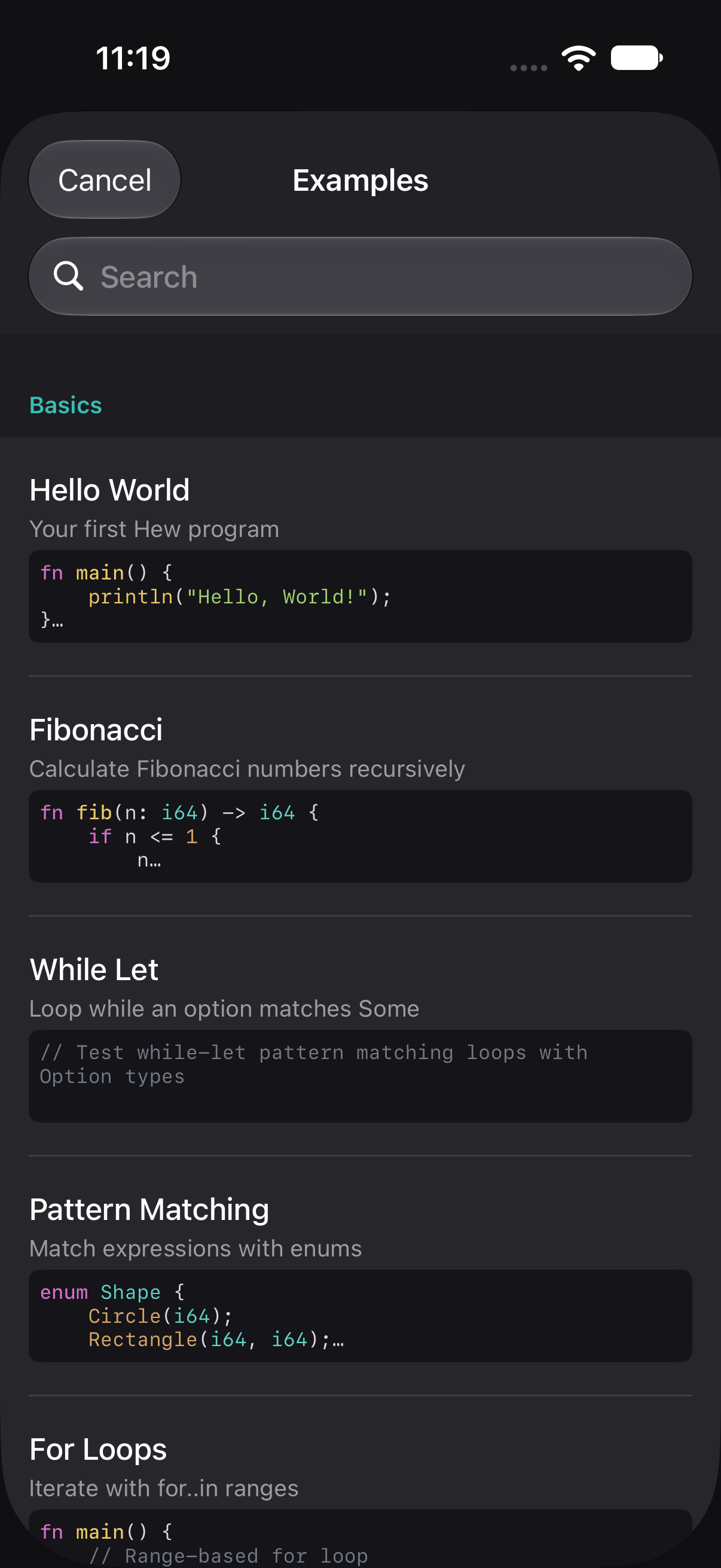
Change the text inside println, then run again. For a small program you can type yourself:
fn main() {
    println("Hello from my phone!");
}
Opening another example replaces the editor contents. Keep a working copy in My Files, or export it, before moving on; respond to any unsaved-changes prompt.
Edit code and understand diagnostics
Tap the editor to type. Line numbers, syntax colors, auto-indent, bracket pairing and the symbol accessory bar help with punctuation. Recent builds offer compiler-backed completion, type information, a document outline and diagnostics. In More (…) → Settings, adjust editor and analysis preferences.
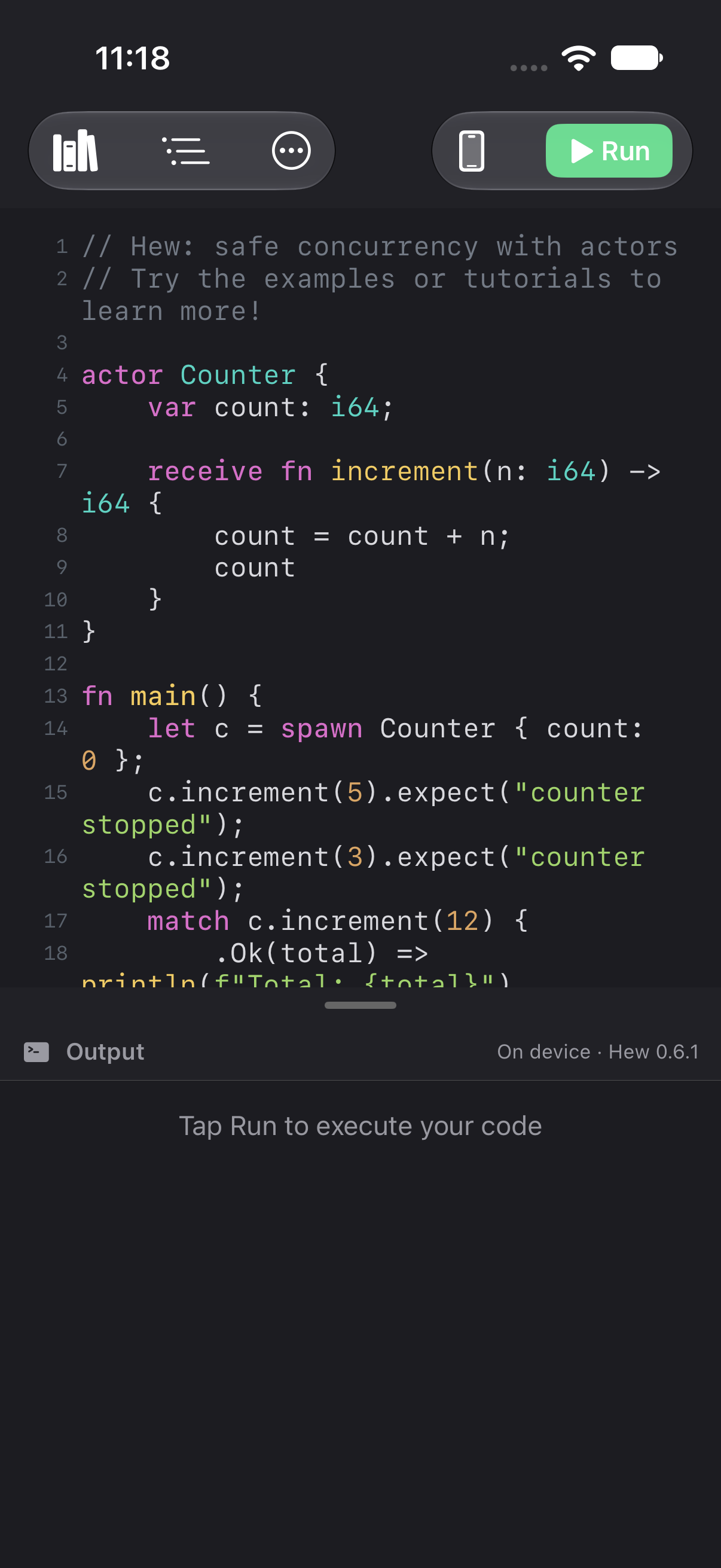
When an underline appears, read the diagnostic before changing more code. A compile error means the program could not build; a runtime error means execution failed after compilation. The Output panel distinguishes these from a connection error. Correct the first relevant error, then run again. Compiler quick fixes, when offered, apply to the selected diagnostic.
Recent builds: choose where the program runs
In builds with the engine selector, On device runs supported programs locally. Remote sends the source to Hew’s online execution service and needs internet. The selected engine and compiler version appear with output. A local failure stays visible; choose Run remotely yourself when that action is offered and you want to send the program to the server.
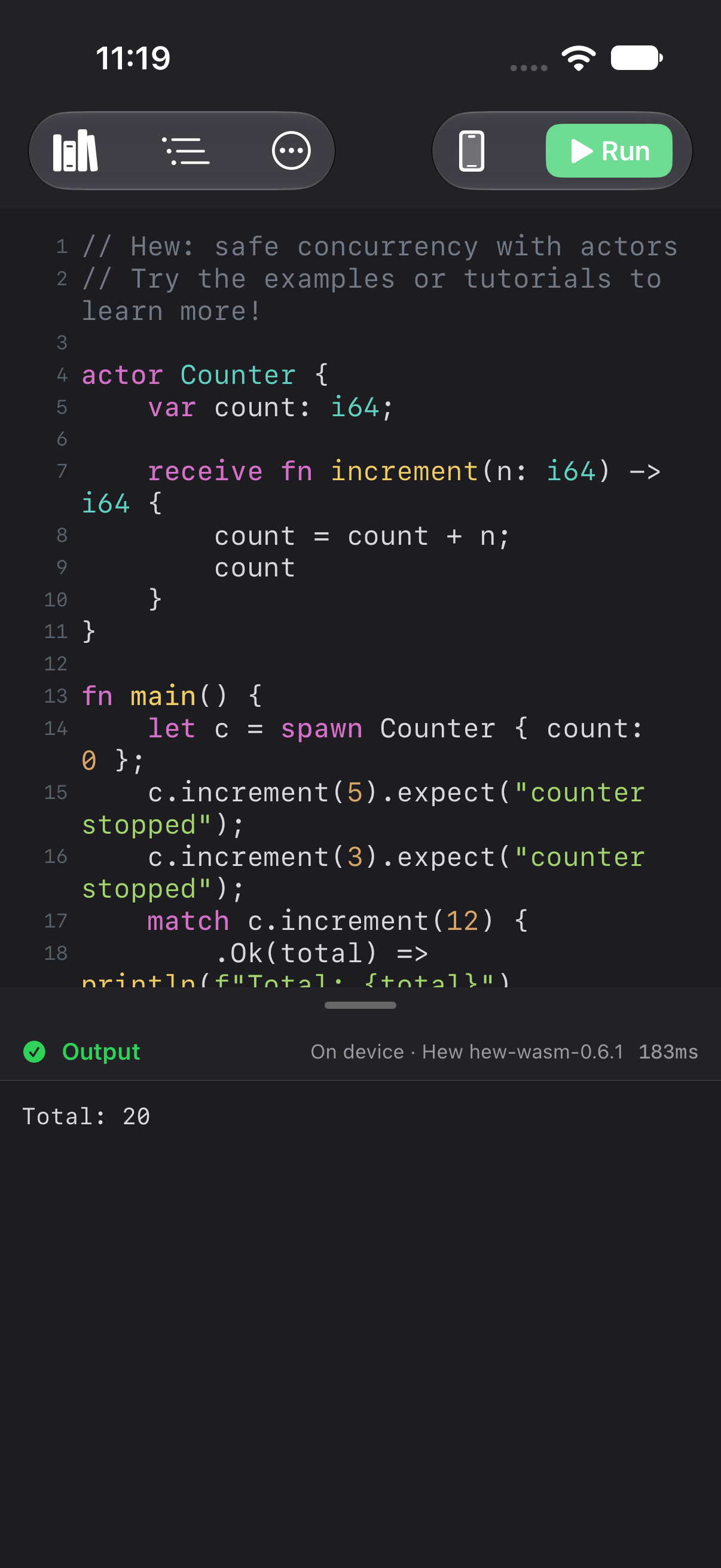
Stop replaces Run while a program is running. Use it to cancel a long run before changing engines or starting another. On-device execution supports the bundled runtime’s capabilities; operating-system resources and some native-only features may need a remote run. Keep a small bundled example handy when checking whether a problem is in your code or the chosen engine.
Save, reopen, import and export
Open More (…) → My Files for local working copies. Use + to create a document and select a document to reopen it. Edits to a working document are saved locally. Rename through the document’s context menu; delete only when you no longer need the local copy.
- Open File… uses the native picker to import a
.hewfile into the editor. - Save As… exports the current code as a
.hewfile to a destination you choose in Files. - An imported or exported file and the app’s local working copy are separate copies. Export again after later edits when you want to update your backup.
Use export for a portable copy before removing the app or changing devices. If a Files provider is unavailable or an export fails, keep the local document and retry with an available destination.
Share code or a link
Use More (…) → Share:
- Copy Code copies source text.
- Copy Link creates and copies a
hew.runlink. - Share Link… opens the system share sheet for that link.
In Settings, the share format can be Auto, Always Inline or Always Server. Inline links carry compressed source in the URL fragment and can be created offline when the program fits. Auto can upload a larger program to create a server-backed link; Always Server uses the server while connected. Recent iOS builds try an inline link when offline, even if Always Server is selected. That offline link still contains the code in its fragment. If the program does not fit, the app reports the problem; copy the code or export a file instead.
Remote execution and server-backed sharing send source text to the service. Anyone receiving a code link can read its contents; remove passwords, tokens and private application data before sharing.
Learn and use reference material
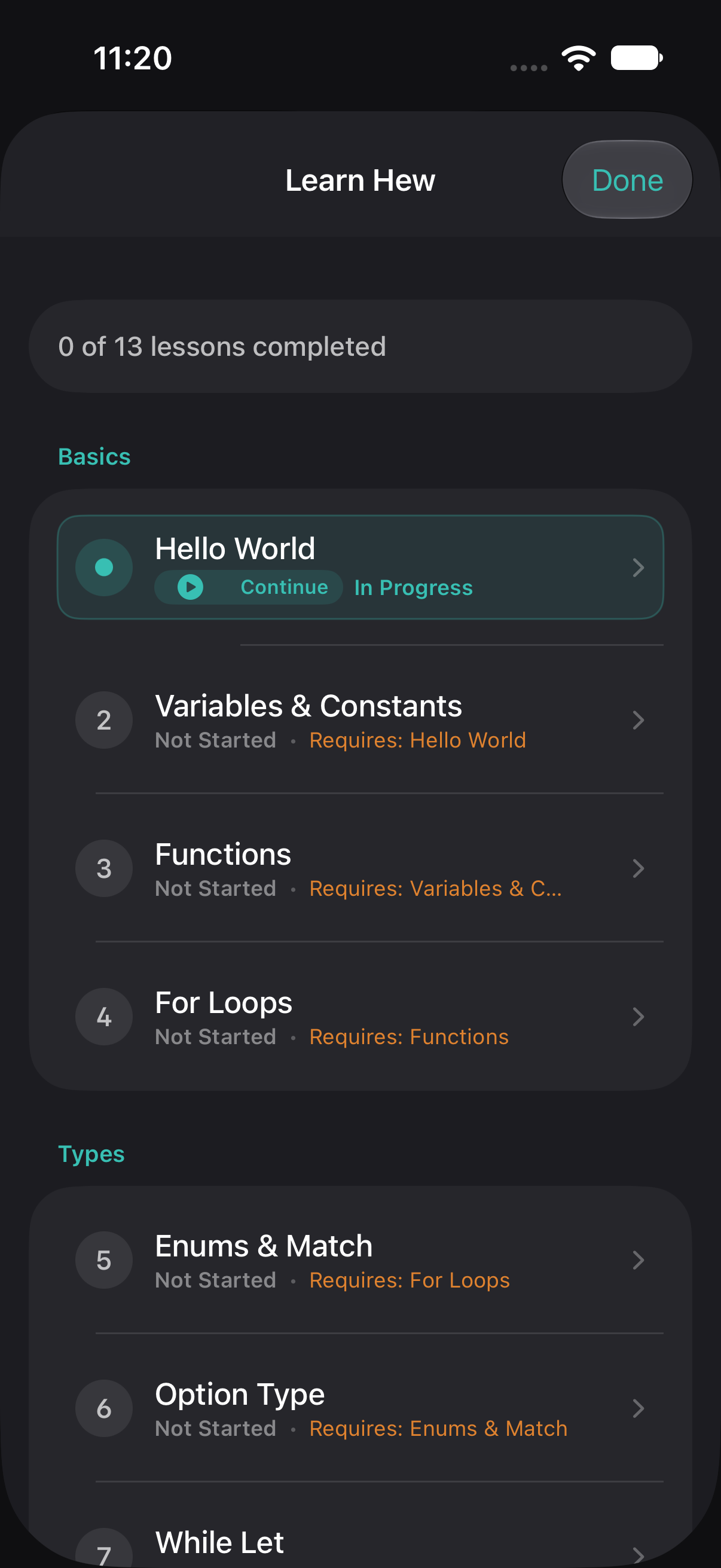
Open Library → Tutorials for guided lessons and Try it in the Editor to work on one.
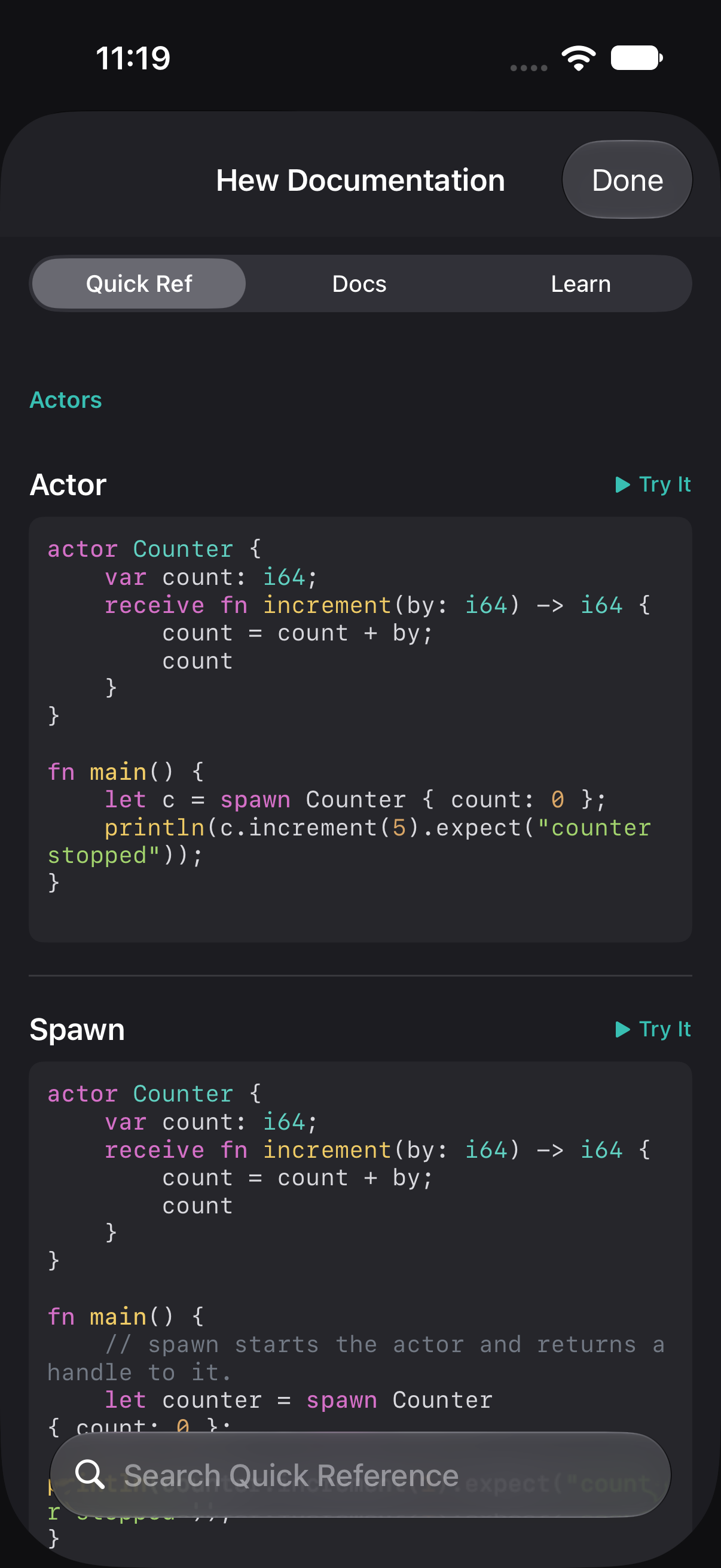
Documentation → Quick Ref contains bundled syntax cards with Try It actions. Docs and Learn open live website pages and need internet; Quick Ref remains available offline.
When you want the ideas behind the syntax, start with the core concepts map. Use the language reference and standard-library guide when you need exact rules or API details. These website pages track the current Hew release and can be newer than the compiler bundled with your installed app.
Use the iPad layout
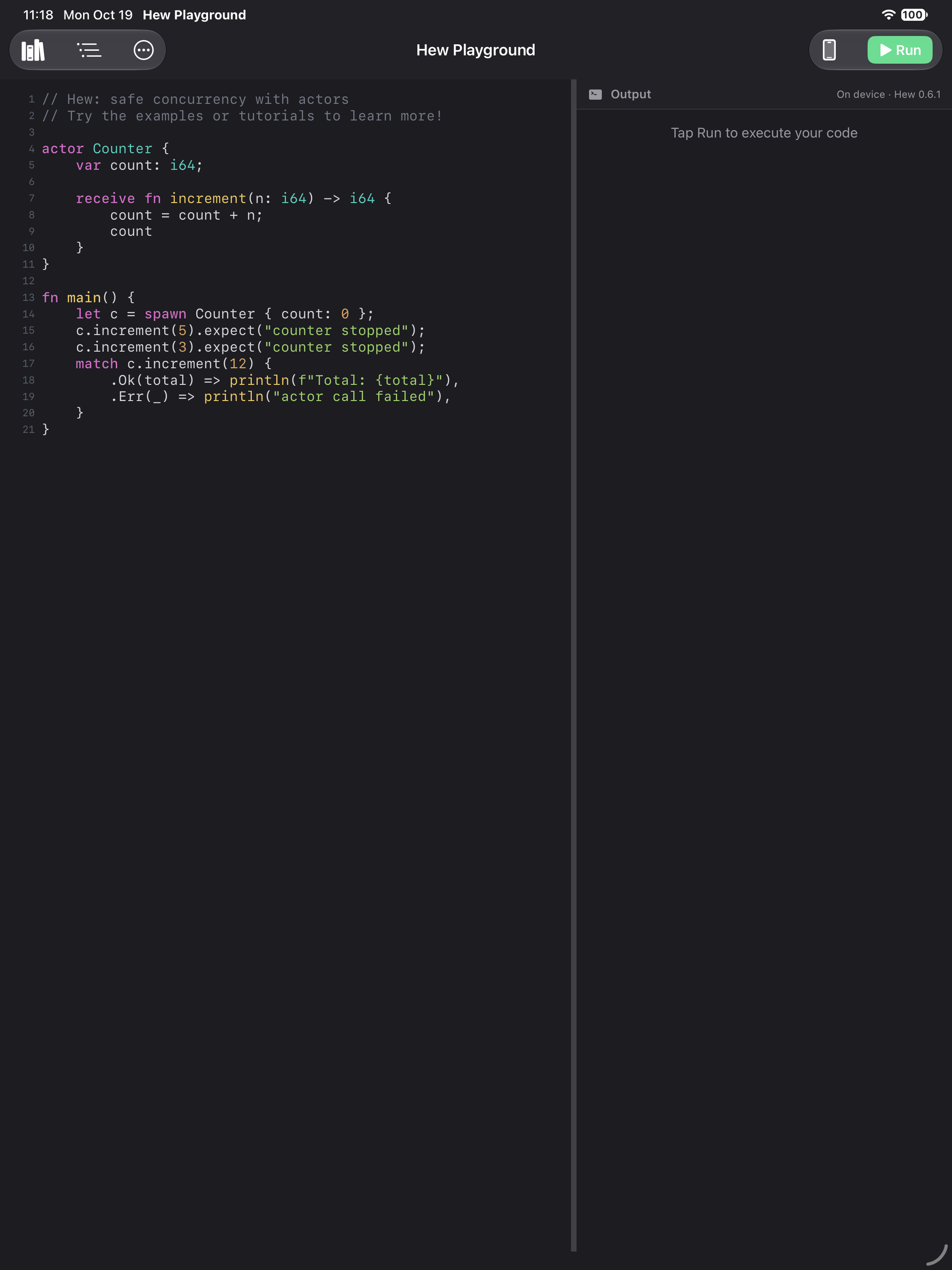
Drag the divider between editor and output to give the panel you are using more space. Rotate or use Split View as needed; the toolbar and panels adapt to the available width. A hardware keyboard is optional.
When something does not work
- Run needs a connection: reconnect for the online engine, or select On device if your build offers it and the local engine is ready.
- Analysis is loading: wait for the language service to finish starting. Check Settings for its status; unavailable analysis does not mean the source is valid.
- An example uses unfamiliar syntax: use examples bundled with your installed build and check the reported compiler version. A website example for a newer compiler may need a newer app.
- No output: expand the Output panel and check for compile, runtime or connection errors. A successful program can also finish without printing anything.
- A shared link fails: check the connection for server-backed links and ask for the full link, source text or a
.hewfile if decoding fails.
Continue with the Android guide or mobile guide overview. The printable manual contains both platform guides.