Hew Observe
See what your actors are doing while a program runs, then save a session to explore after it stops.
Choose your interface
- Desktop app: inspect seven tabs, save sessions and reopen them after the program stops.
- iPad guide: connect over your LAN, inspect with touch controls and export through Files.
- Terminal guide: use
hew observe, discover local processes and follow actor events. - Browser dashboard: open the profiler's own URL for live charts, actors and profile exports.
Read the illustrated user manual, download the PDF or download the ePub. The manual documents the app's 0.1.1 controls and the Observe v1 interface. Its app and screenshot qualification used Hew 0.6.2; the current v0.9.3 SDK retains the same v1 OpenAPI contract.
Install the Linux preview
Hew Observe 0.1.0 is available for Linux x86-64 on Ubuntu 24.04 (glibc 2.39). Choose the DEB to install a desktop launcher, or the AppImage to run the app without installing it. Downloads for macOS, Windows and iOS are not available yet.
Download the DEB (Linux x86-64) and its checksum file. Save both in the same directory, then run:
sha256sum -c Hew-Observe-0.1.0-linux-amd64-preview.deb.sha256
sudo apt install ./Hew-Observe-0.1.0-linux-amd64-preview.deb
hew-observe-desktop
Use the AppImage instead
Download the Linux x86-64 AppImage and SHA256SUMS into the same directory. This launch command extracts and runs the app without requiring FUSE:
sha256sum --ignore-missing -c SHA256SUMS
chmod +x Hew-Observe-0.1.0-linux-amd64-preview.AppImage
./Hew-Observe-0.1.0-linux-amd64-preview.AppImage --appimage-extract-and-run
To try Observe without starting a program, download the example captures and open a recording. If you prefer a terminal interface, use the hew observe terminal guide.
Start a program and connect
Live sessions use the Observe v1 profiler included in Hew v0.9.3. Install the current Hew SDK to connect this desktop preview to your program. The public app preview was qualified against Hew 0.6.2, but the v1 protocol contract is unchanged in v0.9.3; fields added later remain optional to older clients. You can open saved captures without a compiler or a running program.
From your Hew source checkout, build the actor example and enable its profiler on a local TCP address:
hew build examples/observe_showcase.hew -o observe-demo
HEW_OBSERVE=hot HEW_PPROF=127.0.0.1:6060 ./observe-demo
Leave the program running. Observe may connect to the local profiler automatically. To set the address, select the displayed profiler address in the top bar to open Connect to Profiler, enter http://127.0.0.1:6060, and choose Connect. The example creates seven actors; their message counts and the Overview charts update as they work. To inspect your own program, substitute its source file in the build command.
If the connection fails, check that the program is still running and that both addresses use the same port. The desktop app connects to HTTP(S) profiler addresses, not the Unix sockets used by terminal auto-discovery.
Explore actors and events
Start with Overview for message rate, scheduler activity and memory use. Switch to Actors to compare message counts, CPU time and mailbox depth. Sort a column to find the busiest actors, filter by ID, type or state, then select a row for its details.
Messages lists trace events and handlers; Timeline shows when those events occur. For programs with supervisors, use Supervisors to explore the tree and Crashes to inspect failures. Cluster shows membership and connections in distributed programs.
The seven app tabs
These screenshots show the current 0.1.1 app frontend with sample data. Click or tap tabs, use 1–7 when not typing, or move focus to the tab row and use Left/Right. Tab itself moves keyboard focus. Open ? for the keyboard reference.
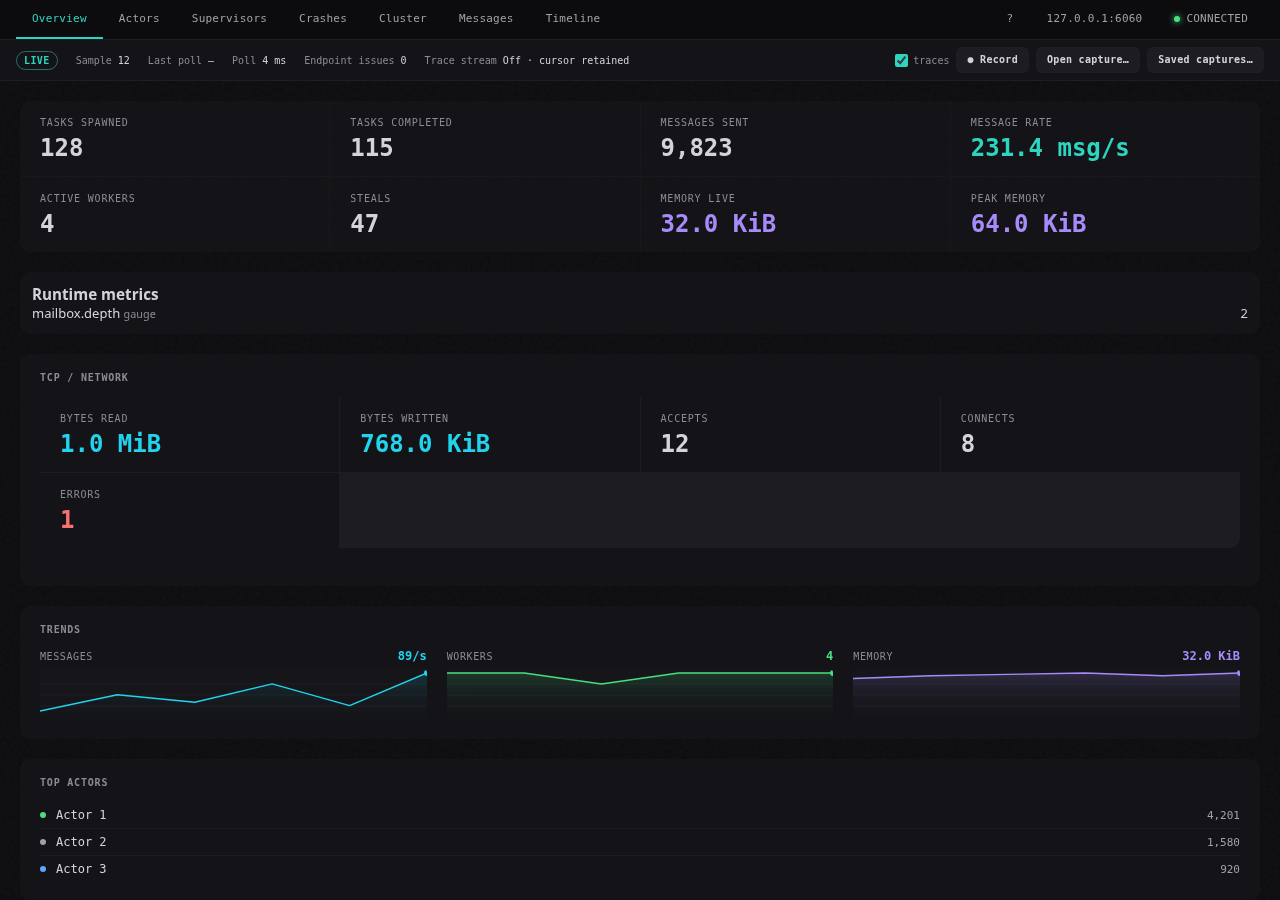
Overview
Check scheduler activity, rates, memory and the busiest actors. Read sample age beside the charts.
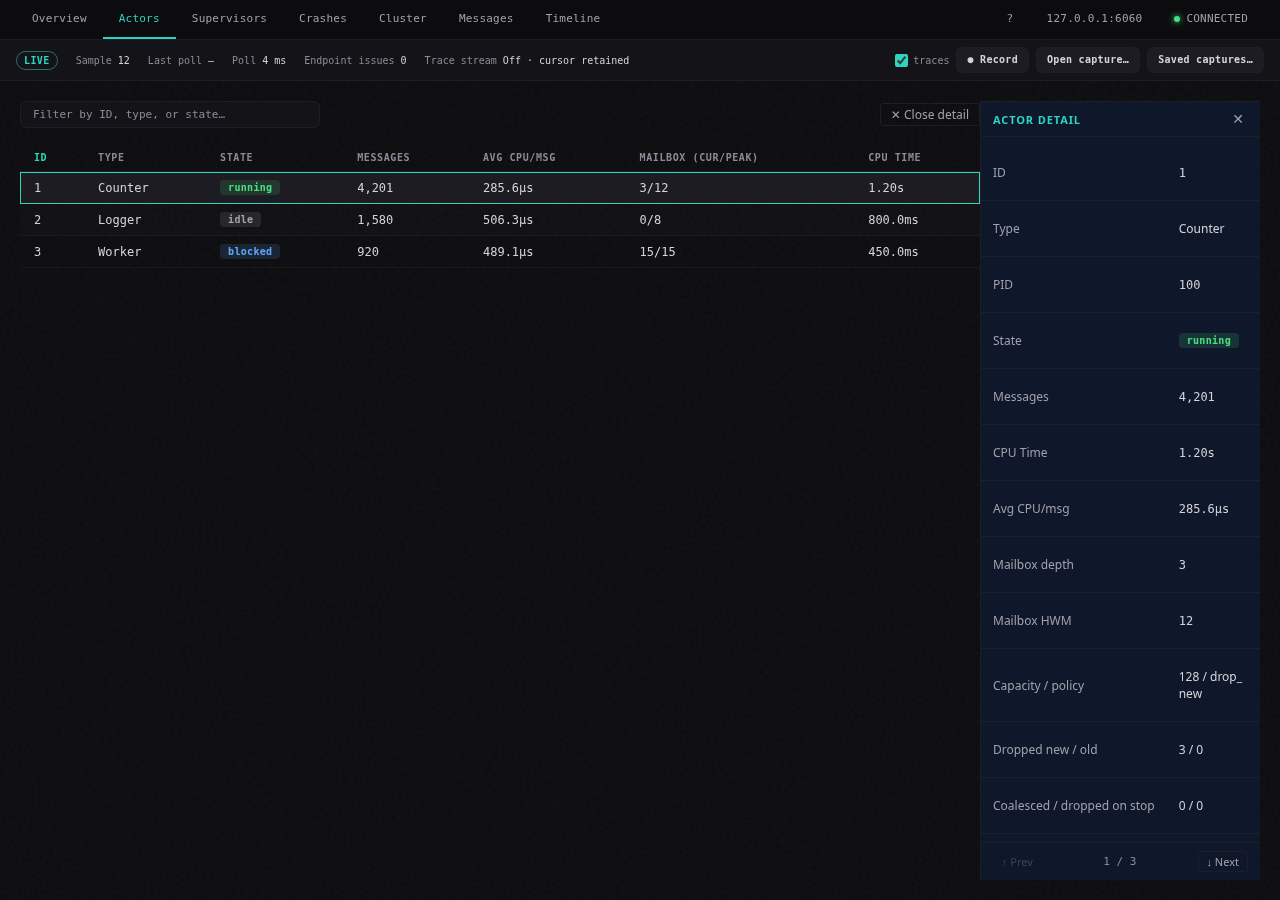
Actors
Filter by ID, type or state, sort column headings and select an actor for processing and mailbox details.
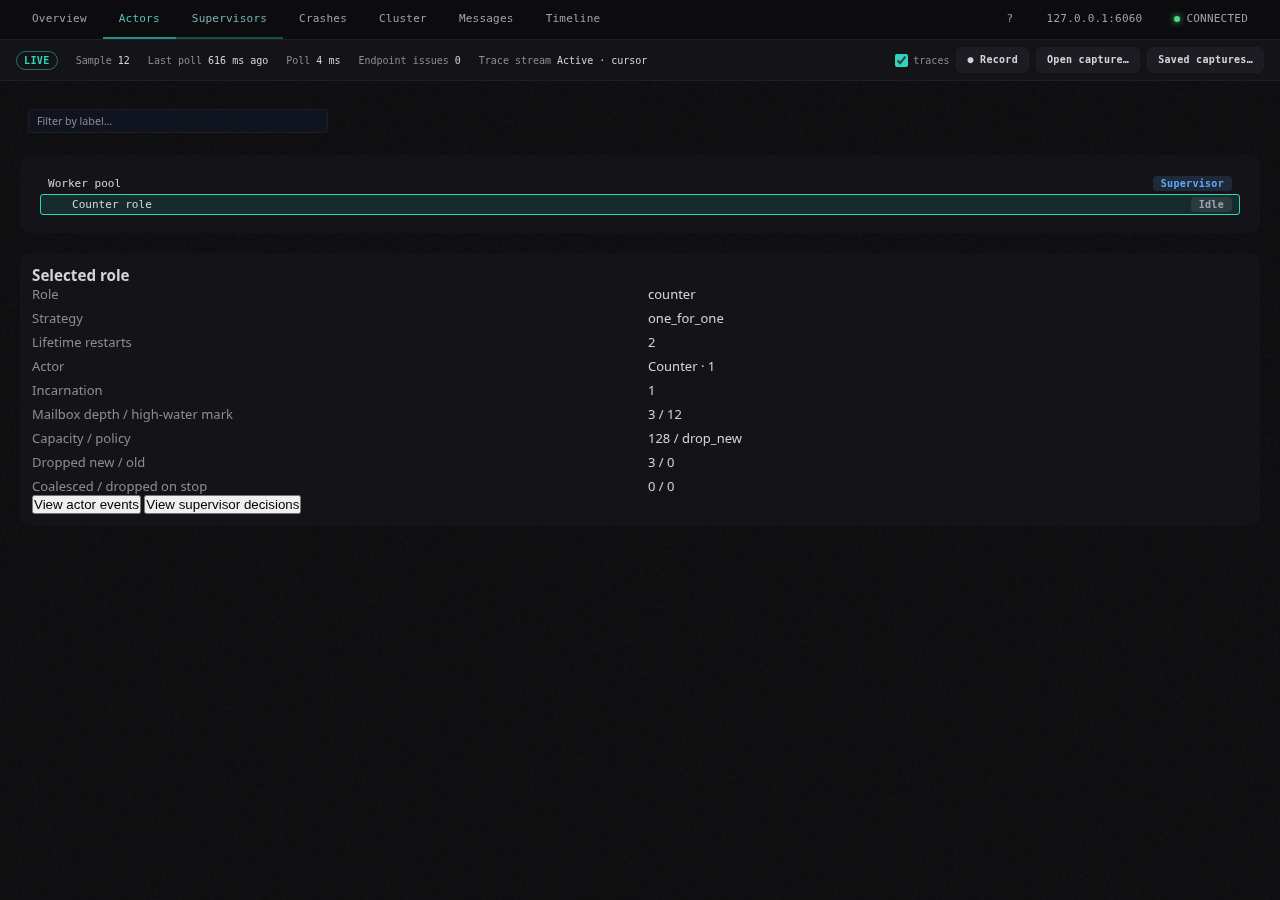
Supervisors
Select a stable role for its strategy, restarts and current incarnation. View actor events or supervisor decisions with the exact producer/incarnation filter.
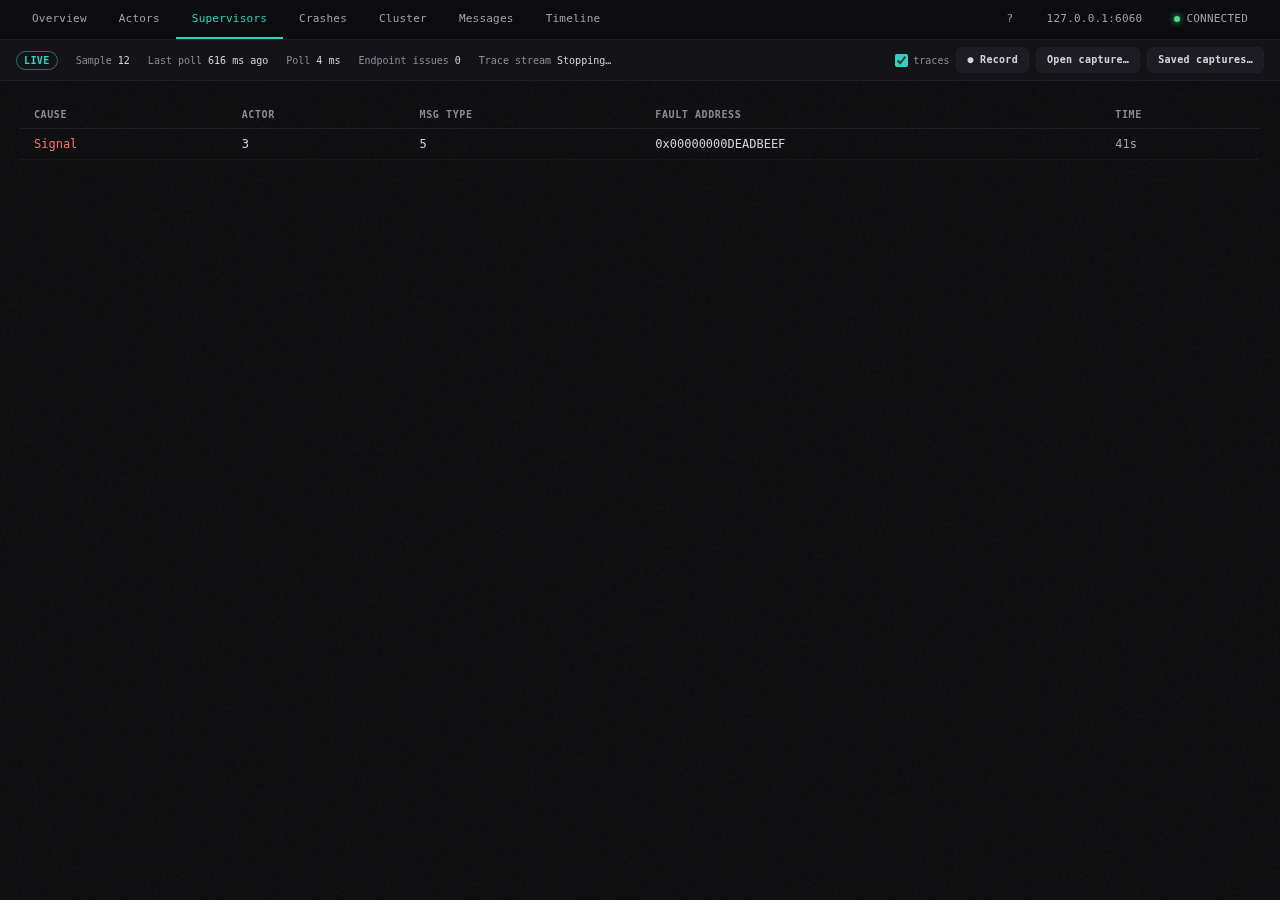
Crashes
Select a reported failure for its actor and reason. A supervisor may already have replaced that worker.
Cluster
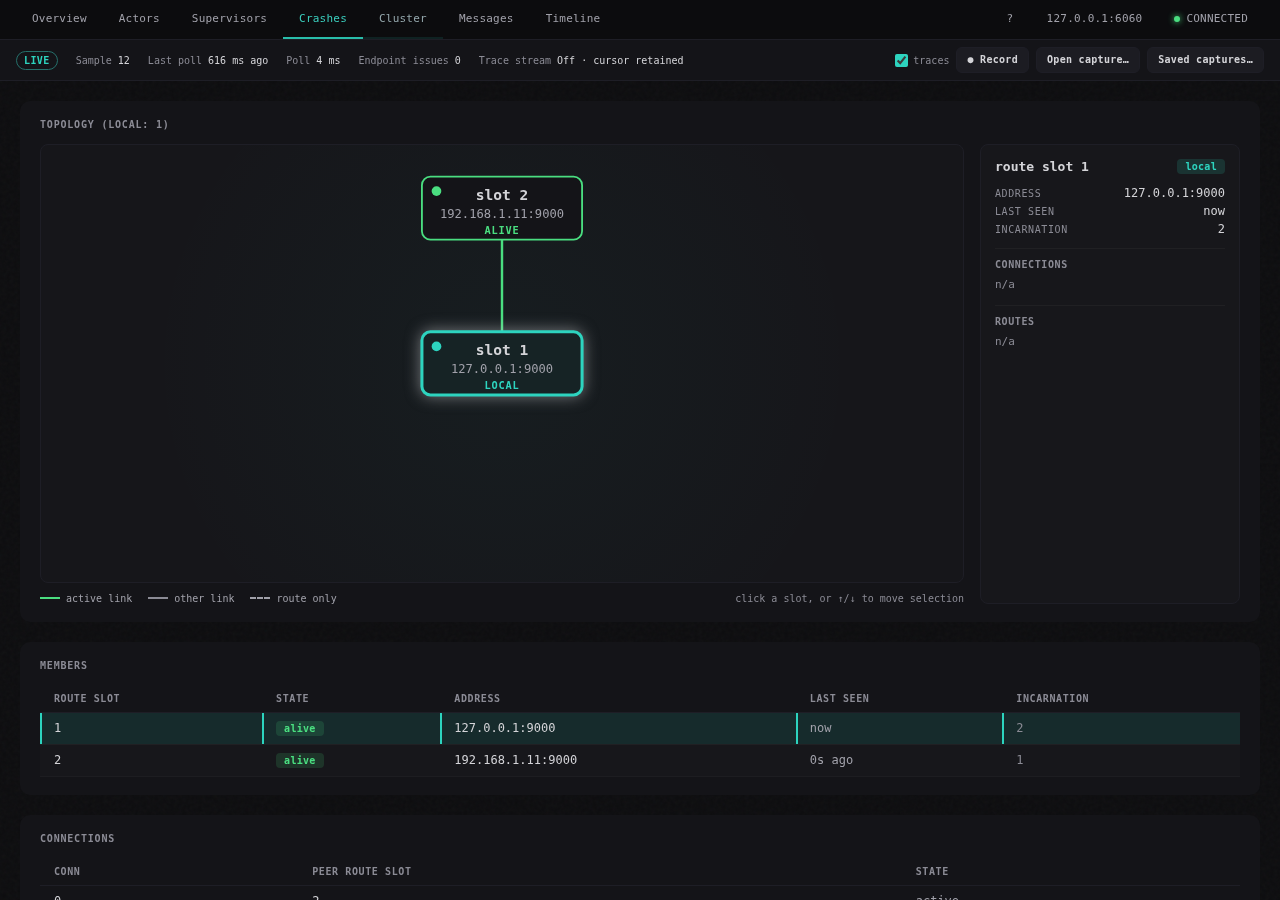
Inspect membership, connections, route slots and runtime node metrics from this producer’s perspective.
Messages
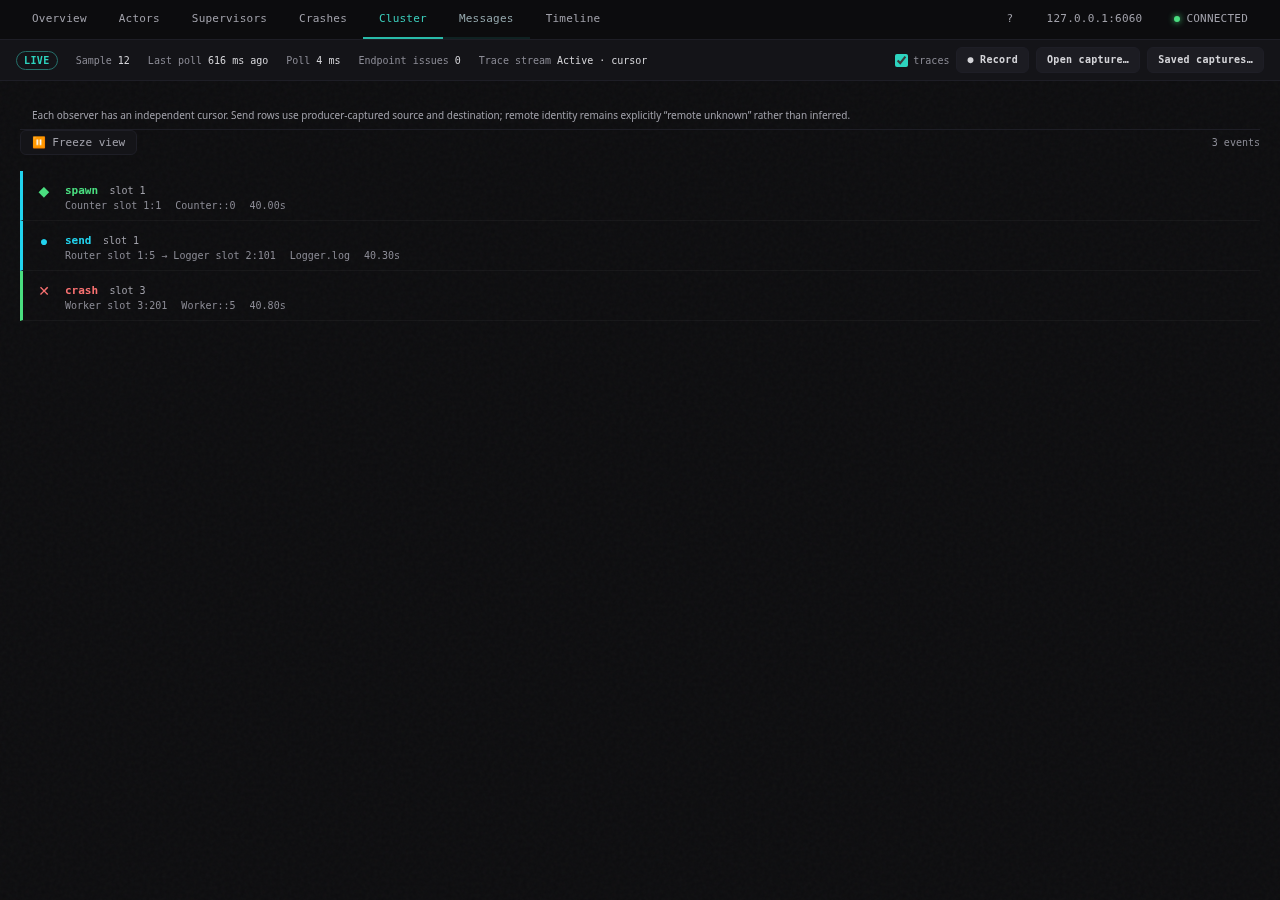
Select an actor event to filter. Freeze View holds a moment while collection continues; Resume View follows new events.
Timeline
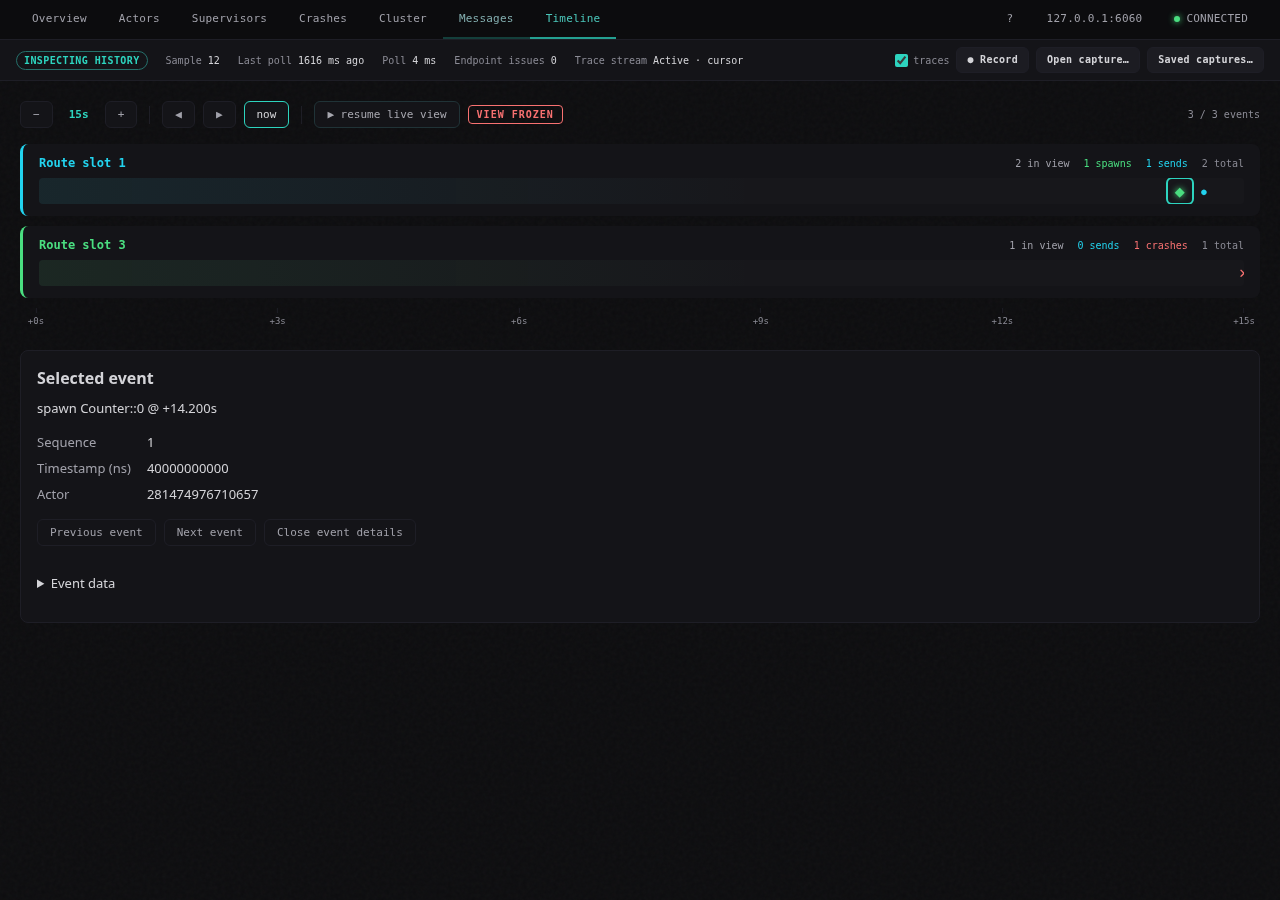
Zoom and pan event lanes. Select a marker for details and use now to follow the latest events.
Mailbox-loss and gossip counters need HEW_OBSERVE=hot when starting the producer. An explicit disabled-counter notice means zeros are not evidence of no loss. Older v1 producers can omit newer optional details.
Record a session
Record the interval you want to investigate while the program runs. Recording continues as you switch tabs.
- Leave traces checked to include message events, or clear it for a metrics-only capture.
- Choose Record in the session bar.
- When you have enough data, choose Stop recording, then Export last… to save a
.hewobsfile.
Exports are local files and can include endpoint addresses, actor and handler names, crash messages and raw profiler responses. Check for sensitive system or application data before sharing a capture.
Reopen a capture
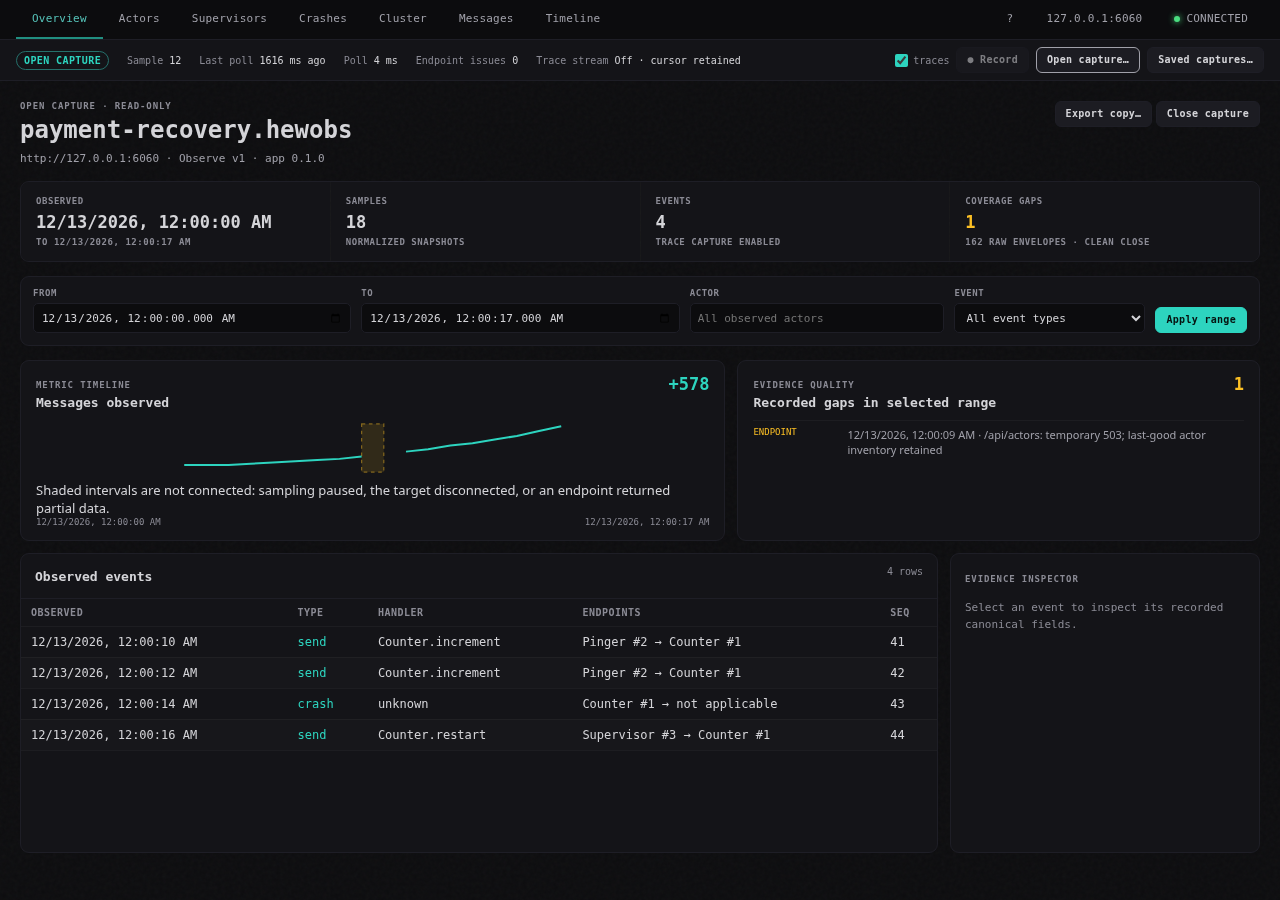
Choose Open capture… and select a .hewobs file. The original program no longer needs to be running. The capture opens read-only, so exploring it does not change the saved data.
In 0.1.1, Saved captures… also reopens app-owned captures after relaunch. The summary shows the recorded interval, sample and event counts, and coverage gaps. A gap can mark interrupted polling or events lost from the profiler's buffer. Review those intervals before comparing activity.
Set From and To to narrow the time window, enter an actor ID or choose an event type, then select Apply range. Choose an event to inspect its handler, actor identities and recorded event details. Use Next event page or Next gap page to browse the remaining results. Use Export copy… to save another copy of the capture, or Close capture to return to the live workspace.
The example capture bundle includes actor traffic, a supervised worker's crash and restart, and Pinger-to-Counter messages. Unzip it and open any of the .hewobs files to explore these sessions.
If opening fails, read the alert and choose Choose another…. If disconnect reports a recording-finalization error, retry or export the recoverable capture before quitting. The manual troubleshooting chapter covers endpoint, export and sandbox errors.
Watch a session
Download the desktop walkthrough (MP4)
More examples: actor traffic, supervision and capture contents
Actor traffic in the terminal observer
Download the actor traffic clip (MP4)
A supervised worker
Download the supervision clip (MP4)
Inside a capture
See the release notes and file checksums for this preview.